
Fix macOS 27 Golden Gate Battery Drain: 5 Steps to Diagnose and Restore Battery Life
Quick Answer
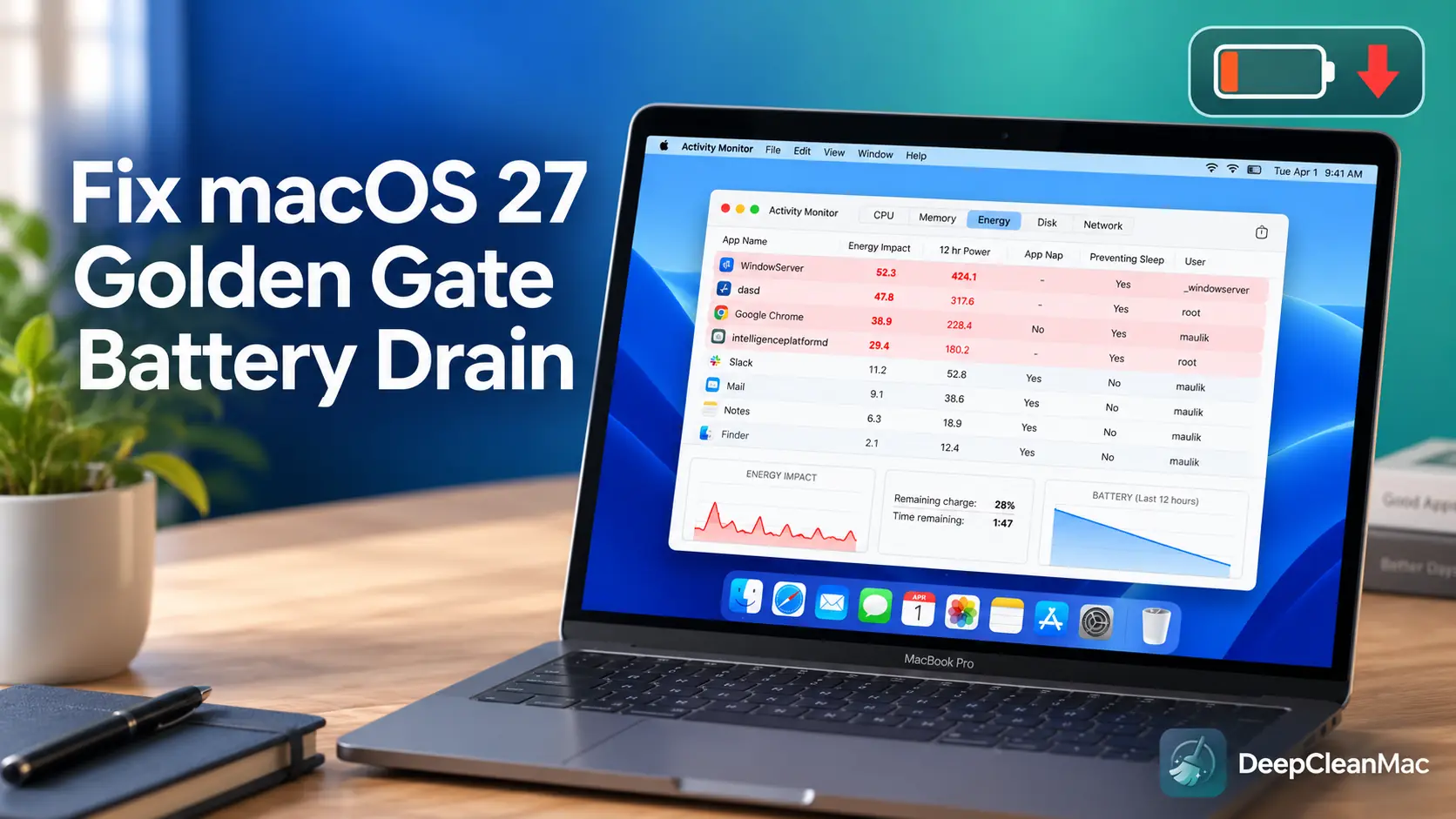
If your MacBook's battery drains faster after upgrading to macOS 27 Golden Gate, start by measuring rather than guessing: open Activity Monitor, click the Energy tab, and sort by Energy Impact to see which apps and processes are actually responsible. Check System Settings > Battery > Battery Health to rule out a degraded battery, and turn on Low Power Mode. If WindowServer is high on the list, drag the new Liquid Glass slider in System Settings > Appearance toward the opaque end, or enable Reduce Transparency. Then trim Apple Intelligence features you do not use, replace Intel-only apps while Rosetta still runs them, and clear the leftovers your upgrade left behind. Give a fresh upgrade a few days before judging it - indexing and syncing run heavily at first. For a one-click cleanup of upgrade leftovers and background clutter, use DeepCleanMac.
Apple pitched macOS 27 Golden Gate as a performance release. At WWDC 2026 the company said it had gone back into the fundamentals - memory usage, CPU utilization, networking, and display rendering - to make the system more responsive, and macOS 27 ships alongside a refined Liquid Glass with a user-facing transparency slider that Tahoe never had. So if your MacBook's battery is draining faster since you upgraded, the useful question is not 'is Golden Gate worse than Tahoe' but 'what specifically is running on my Mac that wasn't before'.
There are a handful of usual suspects. A major upgrade triggers one-time background work: Spotlight rebuilds its index, Photos rebuilds its analysis database, and iCloud re-syncs metadata, all of which can run hard for the first few days and then stop. macOS 27's expanded Apple Intelligence adds systemwide proofreading, improved dictation, personalized smart replies, and automatic file and folder naming, each of which performs on-device inference. Liquid Glass compositing is real GPU work, and it is now adjustable rather than fixed. And because Golden Gate is the first Apple-Silicon-only macOS and the last release with general Rosetta support, the Intel-only apps still on your Mac are worth auditing for reasons that go beyond power draw - after this release they stop running altogether.
This guide works through five steps in the order a technician would: measure first, then change one thing at a time. Where a claim comes from Apple, it is attributed. Where it comes from beta-cycle user reports, it is labelled as such. Details reflect the macOS 27 developer and public betas through late August 2026 and Apple's published documentation as of early September 2026; specifics may shift in the shipping release and its point updates.
5 Steps to Fix Battery Drain on macOS 27 Golden Gate
Method 1: Measure First: Activity Monitor, Battery Health, Low Power Mode
Step 1: Open Activity Monitor from Applications > Utilities, or press Command + Space and type 'Activity Monitor'.
Step 2: Click the Energy tab and sort by 'Energy Impact' to see what is drawing power right now. Note the top five entries before changing any settings - this is your baseline.
Step 3: Check the '12 hr Power' column too. It surfaces apps that drain quietly all day even when their instantaneous impact looks low.
Step 4: Open System Settings > Battery > Battery Health. If maximum capacity is well below 80% or the status reads 'Service Recommended', the battery itself is the limiting factor.
Step 5: In System Settings > Battery, turn on Low Power Mode when running on battery. Apple lists this among its standard recommendations for extending runtime.
Step 6: Disconnect accessories you are not using and lower display brightness. Both are on Apple's own battery guidance list and cost nothing to try.
This step exists because almost every battery complaint after a macOS upgrade gets blamed on the upgrade, and only some of them are caused by it. Activity Monitor's Energy tab tells you which explanation applies to your Mac: if a browser or a sync client sits at the top, the operating system is not your problem. If WindowServer dominates, the interface rendering covered in step 2 is worth adjusting. If nothing obvious is running and the numbers still look bad, check battery health before spending an afternoon on settings - a battery below 80% maximum capacity will not deliver its original runtime no matter which macOS version it is running. Record the baseline before you change anything, then re-check after each change. That is the only way to know whether a fix helped on your machine rather than on someone else's.
Method 2: Reduce Visual Effects If WindowServer Is Using Significant Energy
Step 1: In Activity Monitor's Energy tab, check where WindowServer ranks. This is the system process that draws everything on screen, including Liquid Glass transparency.
Step 2: If it is consistently near the top, open System Settings and click Appearance.
Step 3: Drag the Liquid Glass slider - new in macOS 27 - away from its centred default toward the more opaque end. A live preview shows the effect as you drag.
Step 4: For a stronger change, go to Accessibility > Display and enable 'Reduce Transparency'. Apple describes this setting as replacing transparent backgrounds with solid ones.
Step 5: In the same panel, enable 'Reduce Motion' if you want to stop animated transitions and parallax effects as well.
Step 6: Return to Activity Monitor and compare WindowServer's energy impact against the baseline you recorded in step 1.
Two honest caveats here. First, Apple documents the Liquid Glass slider and Reduce Transparency as appearance and accessibility controls, not as battery features - it does not publish figures for what either one saves. Second, reviewers who tested the macOS 27 betas describe the slider's visual effect on the Mac as subtle compared with iPhone, and the amount of GPU work it removes will vary with your display, your Mac, and what you have open. What is not in dispute is the mechanism: compositing translucency, blur, and depth across every window is work the GPU performs continuously, and reducing it reduces that work. Whether that translates into meaningful runtime on your Mac is something you can answer in ten minutes with the before-and-after comparison above, which is more reliable than any percentage anyone quotes you.
Method 3: Trim the Apple Intelligence and Siri Features You Don't Use
Step 1: Open System Settings > Apple Intelligence & Siri.
Step 2: Review the macOS 27 additions specifically: systemwide proofreading, improved dictation, personalized smart replies, automatic file and folder naming, and notification summaries.
Step 3: Turn off the ones you do not use. Features that act on their own - smart replies, notification summaries, automatic naming - do work without being asked; ones you invoke, such as proofreading, only run when you use them.
Step 4: If you rarely talk to Siri, toggle off 'Listen for Hey Siri' to end always-on wake-word processing.
Step 5: Back in Activity Monitor, watch for 'intelligenceplatformd', 'siriinferenced', and 'photoanalysisd' in the Energy and CPU tabs.
Step 6: If 'photoanalysisd' is busy, it is indexing your photo library after the upgrade. Leave the Mac plugged in and let it finish rather than fighting it.
Worth getting the hardware tiers right, because they are widely misreported. Any Apple Silicon Mac can install macOS 27, and Apple lists Apple Intelligence as supported on M1 and later. A narrower tier - Macs with an M3 chip or later and at least 12GB of unified memory - gets the most capable on-device model, which covers things like the more expressive Siri voices and improved dictation accuracy. So an M1 or M2 Mac runs Golden Gate and Apple Intelligence but skips that top tier entirely. Apple's guidance also notes that Apple Intelligence's on-device models occupy roughly 7GB of storage. What Apple does not publish is a figure for what any individual feature costs in battery terms, so treat this step as removing work you were not benefiting from rather than as a guaranteed number of extra minutes.
Method 4: Audit Intel-Only Apps Before Rosetta Support Ends
Step 1: In Activity Monitor, right-click the column headers and enable the 'Kind' column if it is not already shown.
Step 2: Look for anything listed as 'Intel'. Those apps are running through Rosetta 2 translation rather than natively on Apple Silicon.
Step 3: Check each one for an Apple Silicon version. Most mainstream apps shipped universal builds years ago; the stragglers tend to be niche utilities, plugins, and older professional tools.
Step 4: Note that macOS 27 does not install Rosetta automatically, and removes it if it was present on macOS Tahoe - you will be prompted to install it the first time you open an Intel app.
Step 5: Replace or retire the Intel-only apps you depend on now, while you still have a working macOS release that can run them.
Step 6: If an Intel app shows a high energy impact, compare it against its native equivalent using the baseline method from step 1 rather than assuming translation is the cause.
This is the most clear-cut item in the guide, and it matters beyond battery life. Apple's developer news notice states that macOS 27 is the final release to support Rosetta, and that Intel-only apps will no longer run on Apple Silicon Macs after this update, with a limited exemption remaining for some older games that depend on Intel-based frameworks. Enterprise tools, audio plugins, and business utilities do not qualify for that exemption. Apple first set this timeline at the WWDC 2025 Platforms State of the Union and reconfirmed it at WWDC 2026. On power specifically, be measured: translation adds overhead compared with a native build, so a native version can be more efficient in some workloads, but the size of that difference depends entirely on the app and what you are doing with it. The compatibility deadline is the reason to act; efficiency is a bonus.
Method 5: Clear Upgrade Leftovers, Login Items, and Background Clutter
Step 1: Give the upgrade time first. Spotlight indexing, Photos analysis, and iCloud sync run heavily for the first few days and then stop on their own - cleaning up mid-index tells you nothing.
Step 2: Open System Settings > General > Login Items & Extensions and remove anything from 'Open at Login' you do not need on every boot.
Step 3: Scroll to 'Allow in the Background' and disable helper agents belonging to apps you no longer use.
Step 4: Check System Settings > General > Storage for leftover installer and update files from the upgrade, and remove them through the Storage panel where macOS offers that option.
Step 5: Review Time Machine local snapshots created around the upgrade: run 'tmutil listlocalsnapshots /' in Terminal, and remove old ones with 'sudo tmutil deletelocalsnapshots [date]' if disk space is tight.
Step 6: If you clear caches manually in ~/Library/Caches or /Library/Caches, back up first and delete the contents of individual app cache folders rather than emptying Library folders wholesale. Apps rebuild caches, so expect a temporarily slower first launch.
Be clear about what this step is and is not. Apple's own battery guidance leads with battery condition, display brightness, Low Power Mode, quitting unused apps, disconnecting accessories, and keeping macOS updated - not with file cleanup, which is why cleanup comes last here rather than first. Manually deleting cache and Library contents is not something Apple recommends as a routine battery fix, and doing it carelessly can cost you app preferences or force lengthy rebuilds. Where cleanup genuinely helps is storage headroom: when a drive runs very low on free space, macOS leans harder on swap and background housekeeping, and a busy indexer has more ground to cover. Login Items are the more reliable win in this step - every background agent is a process that starts at boot and keeps running, and most Macs accumulate several the owner never knowingly approved.
What Can Affect Battery Life on macOS 27 Golden Gate
These are the factors worth checking after upgrading, along with how well established each one is. Apple-documented behaviour, ordinary macOS mechanics, and user reports from the beta cycle are three different levels of evidence, and it is worth keeping them apart:
| Factor | What's Actually Known |
|---|---|
| Liquid Glass Compositing | WindowServer renders translucency, blur, and depth continuously - real GPU work, though Apple publishes no power figure for it. New in macOS 27: a Liquid Glass slider in System Settings > Appearance, centred by default, with Reduce Transparency still available in Accessibility for a stronger change. Check WindowServer in Activity Monitor before and after. |
| Apple Intelligence and Siri Features | macOS 27 adds systemwide proofreading, improved dictation, smart replies, and automatic file naming, all of which run on-device inference. Apple Intelligence is supported on M1 and later; the most capable on-device model requires an M3 chip or later with 12GB+ of unified memory. On-device models occupy roughly 7GB of storage. |
| Post-Upgrade Indexing | Spotlight rebuilds its index (mds_stores), Photos rebuilds its analysis database (photoanalysisd), and iCloud re-syncs after any major upgrade. Expect elevated CPU for the first few days, then a return to normal. Temporary and self-resolving - do not benchmark battery life during it. |
| Rosetta 2 Translated Apps | macOS 27 is Apple Silicon only and, per Apple's developer notice, the final release supporting Rosetta; Intel-only apps stop running after it, aside from a limited exemption for some older games. Rosetta is not installed automatically and is removed on upgrade from Tahoe. Translation adds overhead, but the practical reason to act is compatibility. |
| dasd Memory Reports (Beta) | Some macOS 27 beta users reported the Duet Activity Scheduler (dasd) holding unusually high memory. This is user-reported rather than an Apple-confirmed defect, and no bug ID has been published. If you see it, check Memory Pressure, restart, and install the latest build. Treat as a diagnostic to rule out, not an expected fault. |
| Login Items and Storage Headroom | Background agents from apps you no longer use keep running at every boot. Separately, a drive with very little free space pushes macOS into more swap and housekeeping activity. Neither is specific to macOS 27 - both are ordinary maintenance that an upgrade is a good prompt to do. |
Is macOS 27 Golden Gate Actually Worse for Battery Life?
The honest answer is that there is no controlled, published testing to point to yet, and anyone quoting you a precise percentage this early is guessing. What can be said is what Apple claims, what changed mechanically, and what people reported during the beta cycle - in that order of reliability.
Apple's position is that macOS 27 is faster, not slower. At WWDC 2026 the company described going back into the fundamentals of the system - memory usage, CPU utilization, networking operations, and display rendering - specifically to improve responsiveness, and coverage of the release consistently frames it as a performance and refinement update rather than a feature-heavy one. That is the opposite of what you would expect from a release that systematically hurt battery life, and it is a good reason to be sceptical of blanket claims in either direction, including on this page.
What did change mechanically is worth understanding. Liquid Glass compositing is still continuous GPU work, but macOS 27 makes it adjustable for the first time through the Appearance slider, so the cost is now partly under your control - a genuine improvement over Tahoe, where the only lever was the accessibility switch. Apple Intelligence grew: proofreading, improved dictation, personalized smart replies, and automatic file and folder naming all perform local inference, and the most capable on-device model is restricted to Macs with an M3 chip or later and at least 12GB of unified memory. More local AI work means more computation happening on your machine, though Apple has not published what any of it costs in watts.
The part almost everyone underestimates is the transition period. Every major macOS upgrade re-indexes Spotlight, rebuilds the Photos analysis database, and re-syncs iCloud metadata, and all of that runs at elevated CPU until it finishes. A battery reading taken in the first day or two after upgrading describes that background work, not the operating system you will be living with. This alone explains a large share of 'my battery died after the update' reports, on every macOS release, every year.
Beyond that sit two things unrelated to Golden Gate specifically: battery health, which is hardware and degrades regardless of software, and accumulated clutter - background agents from apps you removed, installer and update files left behind, snapshots taken around the upgrade. None of that drains a battery on its own. It makes an already busy Mac busier, and it is the easiest category to deal with.
So rather than asking whether Golden Gate is worse than Tahoe, measure your own Mac. Activity Monitor's Energy tab, a battery health check, and a before-and-after comparison after each change will tell you more about your machine in twenty minutes than any general claim about the release.
Tips for Better Battery Life on macOS 27 Golden Gate
1. Give the upgrade a few days before judging it
Spotlight indexing, Photos analysis, and iCloud metadata sync all run heavily immediately after a major upgrade and then stop. Keep the MacBook plugged in for the first night or two and let them finish. A battery measurement taken during that window tells you about the indexing, not about macOS 27, and a good share of day-one drain reports resolve on their own by the end of the week.
2. Follow Apple's own battery checklist first
Before changing system internals, work through what Apple actually recommends: check battery condition, reduce display brightness, turn on Low Power Mode, quit apps you are not using, disconnect unused accessories, and keep macOS updated. These are the highest-confidence, lowest-risk changes available, and on many Macs they account for most of the difference on their own.
3. Keep macOS 27 updated, especially early on
The first release of any macOS version is the one with the most rough edges, and early point releases are where scheduling, memory, and power issues surfaced during the beta cycle typically get resolved. Check System Settings > General > Software Update regularly in the first couple of months and enable automatic updates. If you hit something that looks like a genuine bug, file it in Feedback Assistant so your configuration is counted.
4. Deal with Intel-only apps now, not later
Turn on the 'Kind' column in Activity Monitor and note anything marked Intel. Apple's developer notice states that macOS 27 is the final release supporting Rosetta and that Intel-only apps will not run on Apple Silicon after it, with a limited exemption for some older games. Native versions can also be more efficient in some workloads, but compatibility is the real deadline: find replacements while the apps still launch.
5. Use the Liquid Glass slider before the accessibility switch
macOS 27's slider in System Settings > Appearance is graduated, so you can reduce translucency partially and keep the look you prefer, with a live preview as you drag. Testers describe the visual difference on the Mac as fairly subtle. If you want a bigger change, Accessibility > Display > Reduce Transparency replaces transparent backgrounds with solid ones - Apple documents it as an accessibility setting, so verify any battery benefit on your own Mac in Activity Monitor.
6. Treat cleanup as maintenance, not as a battery cure
Clearing Login Items, upgrade leftovers, and old snapshots is worth doing after any major upgrade: it frees storage, shortens indexing, and stops background agents you never asked for. What it is not is a substitute for the checks above, and honest expectations matter - how much you recover depends entirely on what has accumulated on your Mac. DeepCleanMac scans 200+ hidden locations and shows you what it found before removing anything.
How DeepCleanMac Fits Into This
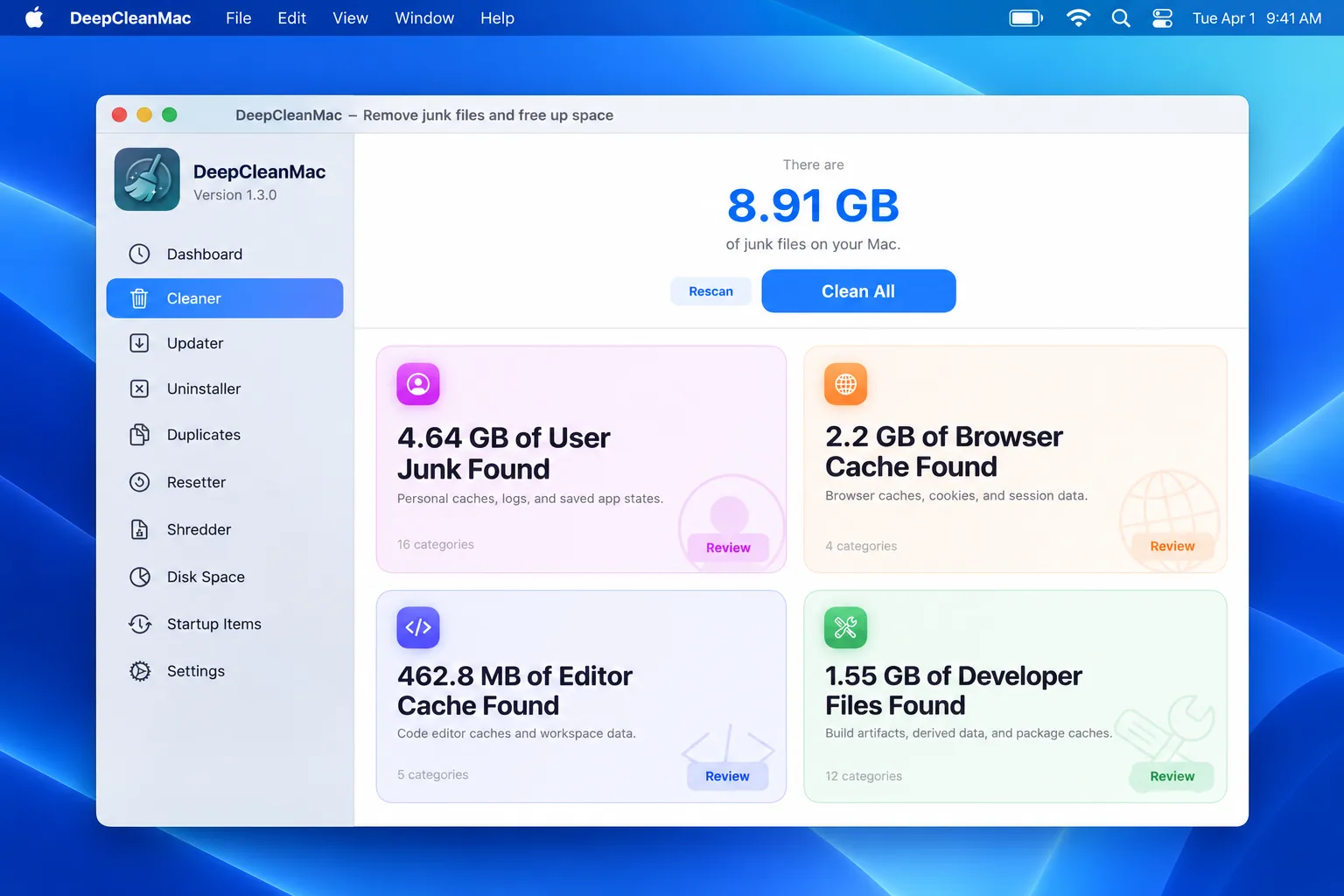
DeepCleanMac is not a battery fix, and it would be dishonest to sell it as one. What it does is handle the last item on the list above - the accumulated clutter a major upgrade leaves behind - without you hunting through Library folders with Terminal open and a backup running.
After upgrading to macOS 27 Golden Gate, a typical Mac is carrying caches written by a macOS version it is no longer running, installer and update files from the upgrade itself, compressed log archives, Application Support folders and launch agents belonging to apps removed months ago, and Time Machine local snapshots taken around the upgrade window. How much of that exists on your machine depends entirely on how long you have had it and what you have installed - which is why this page does not promise you a number.
The reason it is worth clearing is storage headroom and background noise, not a miracle battery gain. A drive with very little free space pushes macOS toward more swap and housekeeping activity, and a freshly upgraded Mac has an indexer working through everything on it. Removing what serves no purpose gives both more room to work.
DeepCleanMac scans 200+ hidden system locations in under 30 seconds and shows you exactly what it found, with sizes, before anything is removed - you decide what goes. It does not touch active system files, personal documents, or anything macOS needs to boot. Download DeepCleanMac free, see what your upgrade left behind, and pair it with the Activity Monitor checks above rather than in place of them.
Frequently Asked Questions
Why is my battery draining after upgrading to macOS 27 Golden Gate?
▾
Usually one of four things. Post-upgrade background work - Spotlight re-indexing, Photos analysis, iCloud sync - runs hard for the first few days and then stops, and this explains a large share of day-one reports. Liquid Glass compositing is continuous GPU work handled by WindowServer, now adjustable via the slider in System Settings > Appearance. macOS 27's expanded Apple Intelligence features perform on-device inference in the background. And separately from any of that, a battery below 80% maximum capacity simply will not deliver its original runtime. Open Activity Monitor's Energy tab and check which of these applies to your Mac before changing settings.
Does the new Liquid Glass slider save battery?
▾
Apple documents the slider in System Settings > Appearance as an appearance control and Reduce Transparency as an accessibility setting; neither is presented as a battery feature, and Apple publishes no figures for what they save. The mechanism is real - compositing translucency and depth across every window is continuous GPU work, and reducing it reduces that work - but the size of the effect depends on your Mac, your display, and your workload, and testers describe the slider's visual impact on the Mac as subtle. The reliable approach is to check WindowServer's energy impact in Activity Monitor, change the setting, and compare.
What is dasd and is it causing battery drain on macOS 27?
▾
dasd is the Duet Activity Scheduler, the macOS process that decides when background maintenance tasks are allowed to run. Normally it is invisible, using a small amount of memory at close to zero CPU. Some users reported unusually high dasd memory usage during the macOS 27 beta cycle; that is a user report, not an Apple-confirmed defect, and no bug ID or release-note acknowledgement has been published. If you see it holding an unreasonable amount of memory, check the Memory Pressure graph in Activity Monitor, restart your Mac - a restart clears the activity queue rather than just the symptom - and install the latest macOS 27 build. Force-quitting a core system daemon is a last resort, not a routine step.
Can I turn off Apple Intelligence on macOS 27 to save battery?
▾
You can turn features off individually in System Settings > Apple Intelligence & Siri, which is more sensible than disabling everything. The features that act without being asked - notification summaries, personalized smart replies, automatic file and folder naming - are the ones to consider first, since features you invoke manually only run when you use them. Turning off 'Listen for Hey Siri' ends always-on wake-word processing. Note that disabling features stops the associated background work, but the on-device models remain on disk unless Apple Intelligence is turned off entirely and macOS is given time to reclaim the space. Apple does not publish per-feature power figures, so measure the difference in Activity Monitor rather than expecting a specific gain.
Is battery life on macOS 27 worse than on macOS Tahoe?
▾
There is no controlled published testing to settle this, and precise percentages circulating online are not backed by measurements. Apple's own position is that macOS 27 improves performance fundamentals including memory usage, CPU utilization, and display rendering. Against that, macOS 27 does more on-device AI work than Tahoe did. The variables that dominate in practice - battery health, workload, installed apps, and whether post-upgrade indexing has finished - differ so much between machines that a general answer would not tell you much about yours. Measure your own Mac with Activity Monitor's Energy tab across a normal working day.
My Intel Mac cannot install macOS 27. What now?
▾
macOS 27 Golden Gate is Apple Silicon only, so Intel Macs remain on macOS Tahoe 26 and continue to receive security updates rather than feature updates. Your battery behaviour therefore stays governed by Tahoe, and the Tahoe-specific guidance still applies. Note the related change for Apple Silicon owners: Apple states that macOS 27 is the final release supporting Rosetta, so Intel-only applications stop running on Apple Silicon Macs after this release, with a limited exemption for some older games.
Will deleting caches improve my battery life?
▾
Not directly, and it is not something Apple recommends as a routine battery fix. The realistic benefit is storage headroom: when a drive runs very low on free space, macOS does more swapping and background housekeeping, and a busy indexer has more to work through. If your Mac has plenty of free space already, clearing caches is unlikely to change your battery life at all. If you do clean manually, back up first, work through individual app cache folders rather than emptying Library folders wholesale, and expect apps to rebuild their caches on next launch. Work through Apple's battery checklist - battery condition, brightness, Low Power Mode, unused apps and accessories, software updates - before reaching for file cleanup.
The most useful thing you can do about battery drain on macOS 27 Golden Gate is resist the urge to change ten settings at once. Measure with Activity Monitor's Energy tab, rule out battery health, let post-upgrade indexing finish, and then adjust one thing at a time - the Liquid Glass slider if WindowServer is heavy, Apple Intelligence features you do not use, Intel-only apps that Rosetta will stop translating after this release. Cleanup belongs at the end of that list rather than the start. Clearing upgrade leftovers, old snapshots, and background agents you never approved is worthwhile maintenance that frees storage and shortens indexing, but it is not a substitute for the checks above and no honest tool can promise you a fixed number of hours or gigabytes back. DeepCleanMac scans 200+ hidden locations in under 30 seconds and shows you exactly what it found before removing anything, so you can see what your upgrade actually left behind on your Mac. Download DeepCleanMac free and clear it out once the rest of the checklist is done.
Free download. Scans 200+ hidden locations in seconds.