
How to Check Cycle Count on MacBook: What the Number Means and When It Matters
Quick Answer
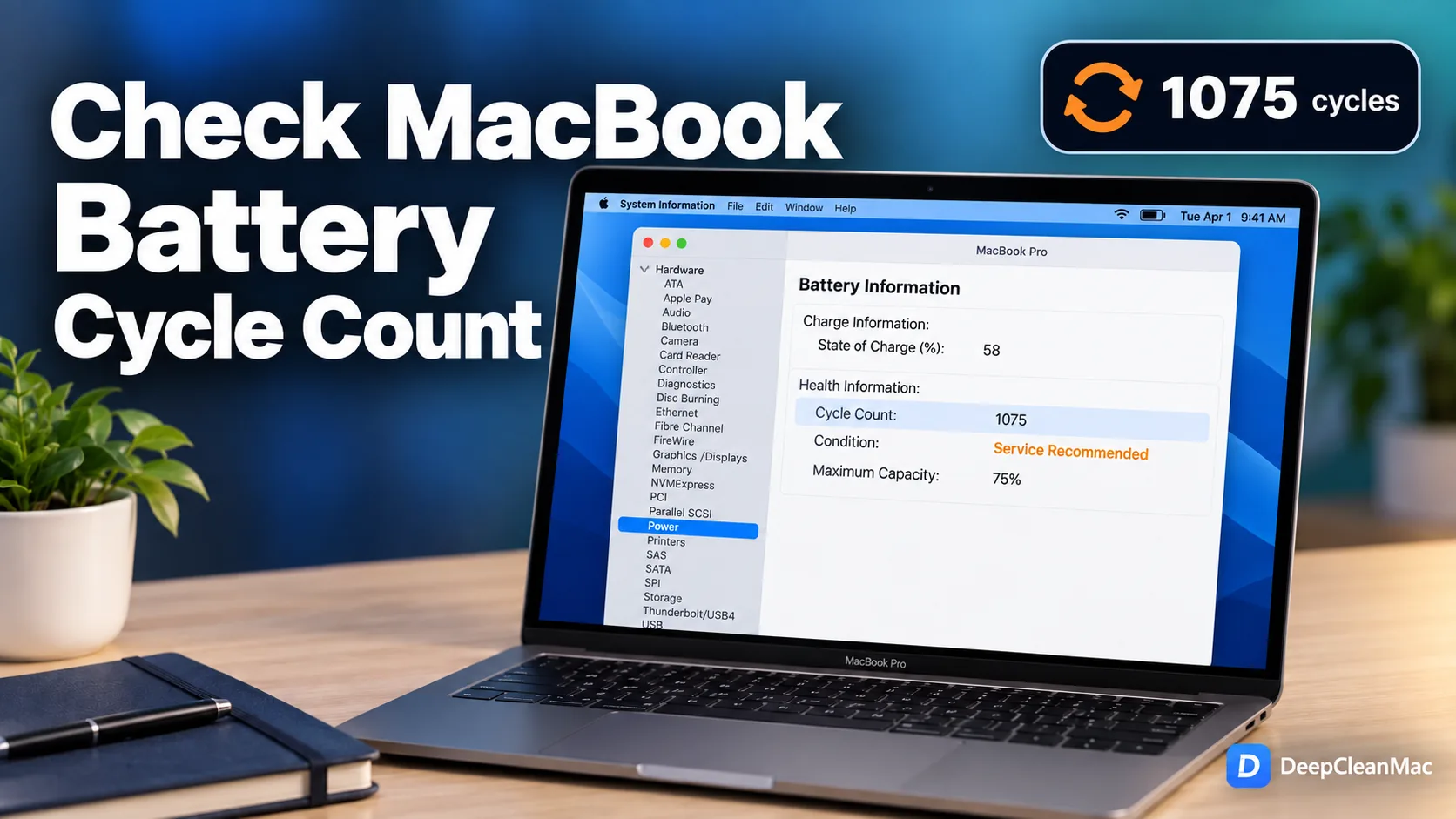
To check the cycle count on a MacBook, hold Option and click the Apple menu, choose System Information, then select Power under Hardware - the number appears under Health Information as Cycle Count. The fastest alternative is Terminal: run system_profiler SPPowerDataType | grep 'Cycle Count'. Every MacBook, MacBook Air, and MacBook Pro released from around 2010 onward is rated for 1000 cycles, and Apple designs the battery to still hold up to 80% of its original capacity when it reaches that number. One cycle means you have used 100% of the battery's capacity in total, which can take several days - it does not mean one plug-in. A cycle count on its own tells you how much the battery has been used, not whether it is still healthy. Read it alongside Maximum Capacity and Condition.
Cycle count is the most quoted and least understood number on a MacBook. People check it before buying a used Mac, panic when it crosses some round figure, and assume it is a countdown to failure. It is none of those things, and treating it as a health score leads to bad decisions in both directions - rejecting a perfectly good machine at 700 cycles, or trusting one at 150 cycles that has a genuinely failing cell.
Here is what the number is. A charge cycle is completed when you have drawn the equivalent of the battery's entire capacity, added up over however long that takes. Use half your battery on Monday and recharge, use half again on Tuesday and recharge, and that is one cycle, not two. Apple's own documentation is explicit about this: it might take several days to complete a single cycle. Plugging in has nothing to do with it. Topping up from 95% to 100% four times in a day adds essentially nothing.
What the number is not is a measure of condition. Cycle count records use. Maximum capacity records wear. They correlate loosely, but heat and time spent sitting at 100% charge affect capacity far more aggressively than cycles do, which is why two MacBooks with identical cycle counts can be fifteen points apart on health.
Every modern MacBook is rated for 1000 cycles, and Apple designs the cell to retain up to 80% of its original capacity at that point. That is a high allowance - most people replace the machine before they approach it. Reaching 1000 does not mean the battery stops working. The MacBook used for the examples in this guide is at 1075 cycles and still runs perfectly well on battery, just for noticeably less time than it once did.
This guide covers five ways to read your cycle count, including a Terminal command that tells you the rated limit for your specific model rather than the general figure, plus what counts as normal at various ages and what actually reduces the rate you accumulate cycles. Verified on macOS 26.
5 Ways to Check Cycle Count on a MacBook
Method 1: Check Cycle Count in System Information
Step 1: Hold the Option key and click the Apple menu in the top-left corner of the screen.
Step 2: The first menu item changes from 'About This Mac' to 'System Information'. Click it.
Step 3: In the sidebar on the left, scroll down to the Hardware section and select Power.
Step 4: On the right, find the Health Information block.
Step 5: Read the Cycle Count line. Condition and Maximum Capacity appear directly beneath it.
Step 6: If you skip the Option key you will get About This Mac instead - from there, click More Info, then System Report, then Power.
This is the method Apple documents, and it is the one to use if you want an answer that does not depend on which macOS version you are running. The layout of System Information's Power pane has been essentially unchanged for over a decade. Reading Cycle Count alongside Condition and Maximum Capacity in the same block is also the right habit - the three numbers only mean something together. A high cycle count with a Normal condition describes a well-used battery ageing on schedule. A low cycle count with Service Recommended describes a cell with a problem, and that is the combination actually worth worrying about.
Method 2: Find Cycle Count in System Settings
Step 1: Open System Settings from the Apple menu or the Dock.
Step 2: Click Battery in the left sidebar.
Step 3: Click the info button (the encircled 'i') next to Battery Health at the top of the pane.
Step 4: The panel shows Battery Condition, Maximum Capacity, and on recent macOS versions, Cycle Count.
Step 5: If Cycle Count is not listed in that panel on your version of macOS, use Method 1 or Method 3 instead - the figure is always available there.
Step 6: While you are in this pane, check that Optimized Battery Charging is enabled. It reduces how long the cell sits at full charge.
Apple has been gradually moving battery information into System Settings, and how much detail appears here depends on your macOS version. On some releases you get cycle count in this panel, on others only Condition and Maximum Capacity. That inconsistency is the reason System Information remains the reliable route. The advantage of coming through System Settings is that you land next to the controls that actually matter for slowing degradation, rather than in a read-only report.
Method 3: Check Cycle Count from Terminal
Step 1: Open Terminal from Applications > Utilities, or press Command + Space and type 'Terminal'.
Step 2: For just the cycle count, paste this and press Return: system_profiler SPPowerDataType | grep 'Cycle Count'
Step 3: The output is a single line, for example: Cycle Count: 1075
Step 4: For the full health picture, run the command without the filter: system_profiler SPPowerDataType
Step 5: Look under Health Information for Cycle Count, Condition, and Maximum Capacity together.
Step 6: No sudo and no admin password is needed. The command reads system information and modifies nothing.
This is the quickest route once you are comfortable in Terminal, and it is the only practical one if you are checking a Mac over SSH or in a screen-sharing session. It is also the command to use if someone asks you to help diagnose their battery remotely - asking them to paste six lines of text is far more reliable than asking them to describe a settings pane. Every legitimate 'check your cycle count online' tool on the web is doing exactly this: handing you this command and parsing what you paste back.
Method 4: Find the Rated Cycle Limit for Your Specific Mac
Step 1: The 1000-cycle figure is correct for modern MacBooks, but older models were rated for 500 or even 300. Your Mac stores its own limit.
Step 2: Open Terminal and paste: ioreg -r -c AppleSmartBattery | grep -E '^ +"(CycleCount|DesignCycleCount9C|PermanentFailureStatus)" ='
Step 3: DesignCycleCount9C is the cycle limit Apple rated your model for. On current MacBooks it reads 1000.
Step 4: CycleCount is your current count. Compare the two directly.
Step 5: PermanentFailureStatus should read 0. Any other value means the battery management system has flagged a hardware fault, and that matters far more than your cycle count does.
Step 6: To see how far through the rating you are, divide your count by the limit. 1075 against a 1000 limit means the battery is past its rated life, though still usable.
Almost nobody checks this, and it is the difference between a meaningful comparison and a meaningless one. If you are evaluating a secondhand MacBook Air from 2009 or a MacBook Pro from 2008, a count of 450 is not 'less than half used' as it would be on a modern machine - those models were rated for 500 cycles, so 450 means the battery is nearly consumed. The 300-cycle rating applies to the original MacBook, the original MacBook Air, and the first MacBook Pro models. Reading the limit off the machine itself avoids having to look your model up in Apple's table, and it is the only way to be certain you are comparing against the right number.
Method 5: Track Cycles Over Time with a Menu Bar App
Step 1: The methods above give you a snapshot. If you want to know your rate of accumulation, you need readings over time.
Step 2: coconutBattery is the established free option. It shows cycle count, design capacity, current capacity, battery age, and manufacture date together.
Step 3: Note your cycle count and the date somewhere, then check again in three months.
Step 4: Divide the difference by the number of months to get your cycles-per-month rate.
Step 5: Multiply by 12 for an annual rate, then compare it against your remaining allowance to estimate how long the battery has left.
Step 6: Only install battery utilities from well-known developers, via the Mac App Store or the developer's own site. This category is a common cover for adware on macOS.
A rate is far more useful than a count. Someone accumulating 300 cycles a year is a heavy unplugged user who will reach the 1000-cycle rating in a little over three years. Someone at 80 cycles a year is mostly working plugged in and will never get close. Both readings are normal, but they imply completely different answers to the question of whether to replace a battery now or in two years. If your rate seems unexpectedly high, the usual explanation is background processes draining the battery faster than your actual workload warrants - worth checking Activity Monitor's Energy tab before concluding that you simply use your Mac a lot.
What Your Cycle Count Actually Tells You
Against a 1000-cycle rating, here is how to read the number you found. These bands describe expected use, not condition - always check Maximum Capacity and Condition alongside them before drawing any conclusion:
| Cycle Count | What It Means |
|---|---|
| Under 200 cycles | A lightly used battery, typically a Mac under two years old or one that lives plugged in at a desk. Capacity should be in the mid-90s or higher. If maximum capacity is already below 85% at this count, cycles are not the cause - look at heat exposure or a cell fault instead, and check the warranty. |
| 200 to 500 cycles | Ordinary use for a Mac that is two to four years old. You are between a fifth and half of the way through the rating. Expect maximum capacity somewhere in the high 80s to low 90s. Nothing here needs attention, and this is a perfectly reasonable range for a secondhand purchase. |
| 500 to 800 cycles | A well-used battery, usually a Mac that spends most of its life unplugged. Capacity is commonly in the low-to-mid 80s. Runtime is noticeably shorter than new but the battery is working as designed. Worth starting to budget for a replacement, not worth rushing one. |
| 800 to 1000 cycles | Approaching the rated limit. Apple's design target is up to 80% of original capacity at 1000 cycles, so expect to be near or slightly below that. This is the point where a replacement usually pays for itself in restored runtime, particularly if you regularly work away from power. |
| Over 1000 cycles | Past the rated life. Apple considers the battery consumed at this point, which means the rating has been met, not that the battery has failed. It will keep working - expect shorter runtime, faster percentage drops, and occasional early shutdowns. Replacement is reasonable whenever the reduced runtime starts to get in your way. |
| Older Macs rated for 300 or 500 | Macs from roughly 2006 to 2009 were rated for 500 cycles, and the earliest MacBook, MacBook Air, and MacBook Pro models for 300. On those machines a count of 400 is near the end of life, not the middle. Check DesignCycleCount9C with ioreg rather than assuming the 1000 figure applies. |
What Actually Counts as One Charge Cycle
The definition trips people up because it does not match the intuitive idea of charging. A cycle is not a plug-in event. It is the accumulated discharge of 100% of the battery's capacity, however long that takes and however many separate sessions it spans.
Apple's own example is the clearest one: use half your battery one day and recharge it fully, then use half again the next day and recharge, and you have completed one charge cycle across two days, not two cycles. The counter is tracking total energy drawn out of the cell, not how many times a cable was connected.
That has several consequences worth knowing.
Topping up does not cost you cycles. Plugging in at 90% and charging to 100% draws 10% of capacity. Do that ten times and you have used one cycle. There is no penalty for charging opportunistically, and the widespread belief that frequent small charges wear a battery out faster is simply wrong for lithium-ion cells - the opposite is closer to true, because shallow cycles in the middle of the charge range are gentler than deep ones.
Running plugged in does not accumulate cycles. A MacBook on mains power that stays at 100% is not drawing from the battery, so the counter barely moves. This is why desk-bound Macs can be four years old with 150 cycles. It is also why a low cycle count on a used machine is not automatically good news: that battery may have spent four years sitting at 100% and full voltage, which ages a cell in a way the cycle counter never records.
Deep discharges do not add extra cycles either, but they are not doing you any favours. Running to 0% regularly puts the cell under more stress than staying in the middle of the range. The monthly full-discharge calibration routine that was genuinely necessary on older Mac batteries has been obsolete for years.
And sleep costs almost nothing. A MacBook asleep in a bag draws a trickle. Over a week that might amount to a few percent of capacity, a rounding error against a 1000-cycle allowance.
The practical upshot is that your cycle count grows in proportion to how much work you do away from a power outlet, and very little else. It is a usage odometer. Reading it as a health gauge is the mistake - for that you want Maximum Capacity, and for a verdict on the cell itself you want Condition.
How to Keep Your Cycle Count Low
1. Understand what you are optimizing for first
Keeping the count low is only worth doing if it does not push you into something worse. A MacBook permanently plugged in at 100% accumulates almost no cycles and ages faster than one cycling gently between 40% and 80%, because time at high voltage degrades a cell more than moderate cycling does. Chasing a low cycle count by never unplugging is optimizing the wrong number. The count is a means of estimating remaining life, not a score to protect.
2. Cut the background power draw
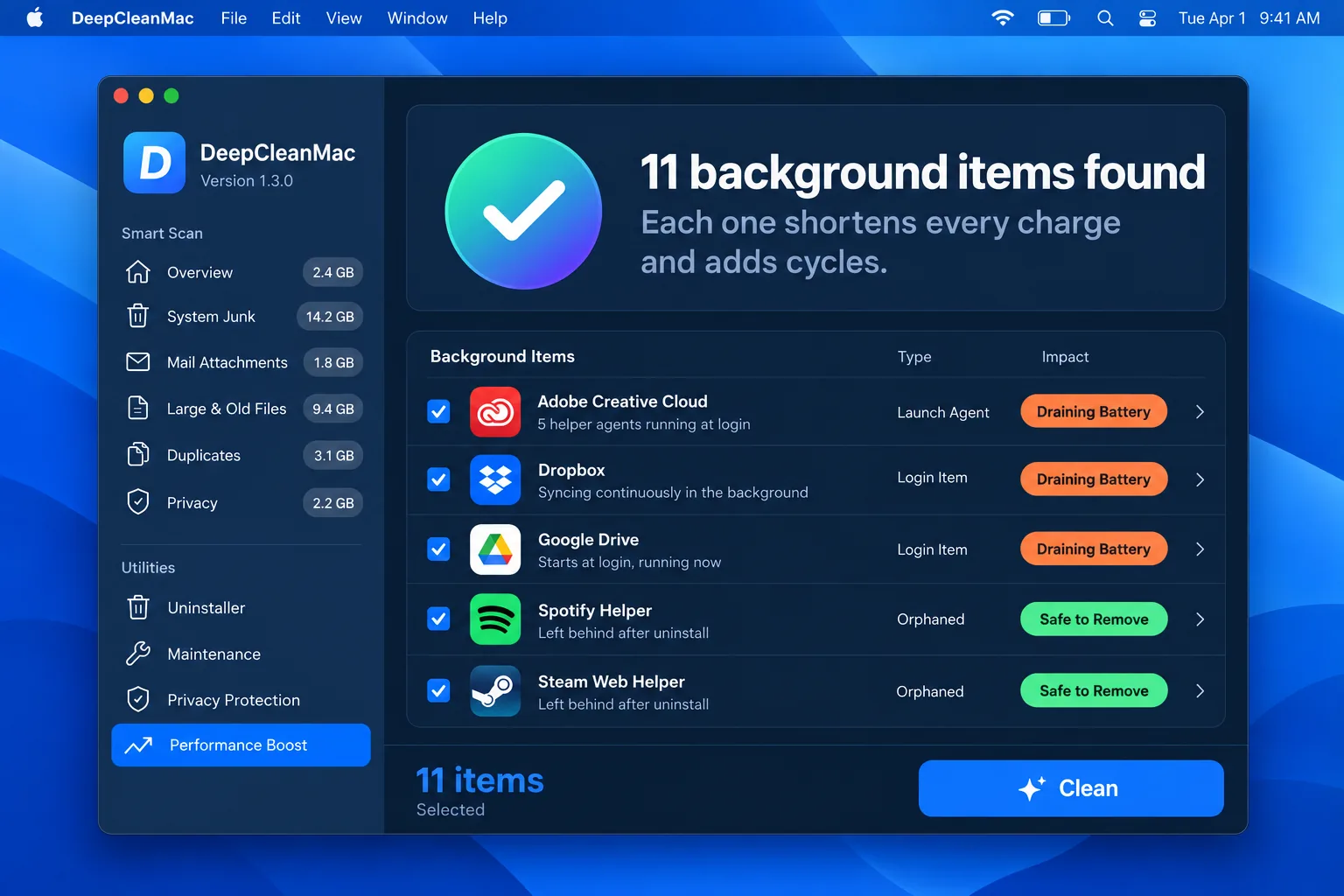
This is the most effective lever, because it reduces cycles without changing how you work. Every orphaned launch agent, unnecessary login item, and background helper from software you no longer use draws power the whole time you are unplugged. That shortens each charge, and shorter charges mean more full cycles per week for exactly the same amount of real work. Check System Settings > General > Login Items & Extensions, then look in ~/Library/LaunchAgents for .plist files belonging to apps you have deleted.
3. Find the energy hogs in Activity Monitor
Open Activity Monitor from Applications > Utilities and click the Energy tab, then sort by Energy Impact. The '12 hr Power' column is the more revealing one, because it catches apps that drain steadily over a day rather than spiking briefly. Browsers with a lot of open tabs and Electron apps such as Slack, Discord, and Teams are usually at the top. Quitting the ones you are not actively using genuinely extends each charge.
4. Use Low Power Mode when you are away from power
System Settings > Battery, then set Low Power Mode to activate on battery. It reduces display brightness slightly, drops ProMotion displays from 120Hz to 60Hz, and throttles background activity. On a long unplugged working session that difference is often the margin between finishing on one charge and needing a top-up - which is one fewer partial cycle accumulated.
5. Do not run to empty as a matter of routine
Deep discharges do not add cycles beyond the capacity you actually used, but they do stress the cell more than shallow ones. Staying roughly between 20% and 80% where your workflow allows is easier on the battery than habitually running it flat. This is guidance, not a rule to organize your day around - occasionally hitting 5% is harmless.
6. Keep it cool, because heat matters more than cycles
If you only change one thing, change this. Degradation reactions roughly double in rate for every 10 C rise in temperature, which means sustained heat costs you more capacity than the cycles ever will. Do not block the vents with soft surfaces, do not leave the Mac in a hot car, and track down any process pinning the CPU for hours at a time. A cool MacBook at 800 cycles will usually be in better shape than a hot one at 400.
Where DeepCleanMac Fits In
To be clear about what is and is not possible: nothing can reduce a cycle count that has already been recorded. It is stored in the battery's own controller, it only moves in one direction, and any tool claiming to reset it is either doing nothing or lying to you. Replacing the battery is what resets it, because the counter belongs to the cell.
What you can change is the rate at which you accumulate cycles from here, and that is largely a software question. Your cycle count grows in proportion to how much energy you draw while unplugged. If a meaningful share of that energy is going to background agents from apps you removed months ago, login items you never knowingly approved, and helpers that start with the system and do nothing useful, then you are accumulating cycles for work you are not getting any benefit from.
DeepCleanMac scans 200+ hidden locations in under 30 seconds and shows you exactly what it found, with sizes, before removing anything - orphaned launch agents, leftover application support folders from uninstalled software, stale caches, and old update files. You review the list and decide what goes. It will not change the number in System Information, and it does not pretend to. What it does is remove background load that was shortening every charge for no return.
If your cycle count is already past 1000 and your maximum capacity has fallen below 80%, the honest answer is that you need a new battery rather than a cleaner. Download DeepCleanMac free and see what is actually running on your Mac.
Frequently Asked Questions
What does cycle count mean on a MacBook?
▾
It is the number of complete charge cycles the battery has been through, where one cycle equals 100% of the battery's capacity discharged in total. It does not mean one plug-in. Using 50% on two consecutive days and recharging each time counts as a single cycle. It measures how much the battery has been used, not how healthy it currently is - for that, check Maximum Capacity and Condition.
What is a normal cycle count for a MacBook?
▾
It depends far more on how you work than on the Mac's age. Someone mostly working unplugged might add 250 to 350 cycles a year, while a desk-bound Mac might add fewer than 100. As a rough guide, 200 to 500 is typical at two to four years old. There is no count that is abnormal on its own - a high number with a Normal condition simply means a well-used battery ageing as expected.
Is 1000 cycles bad for a MacBook battery?
▾
It means the battery has reached the life Apple rated it for, not that it has failed. Apple designs the cell to still hold up to 80% of its original capacity at 1000 cycles. Past that point it keeps working, with shorter runtime, faster percentage drops, and occasional early shutdowns. Replacement makes sense when the reduced runtime actually interferes with your work, not automatically at the moment the counter rolls over.
Does leaving my MacBook plugged in increase the cycle count?
▾
Almost not at all. On mains power at full charge the Mac is not drawing from the battery, so the counter barely moves. But a low cycle count achieved this way is not the win it appears to be - a cell held at 100% sits at its highest internal voltage, and that ages it faster than moderate cycling does. Leaving Optimized Battery Charging enabled addresses this by holding the charge near 80% until you need a full one.
Can I reset my MacBook's cycle count?
▾
No. The count is stored in the battery's own controller and only increases. Resetting the SMC, reinstalling macOS, and erasing the drive all leave it untouched. It resets only when the battery is physically replaced, because the counter belongs to the cell rather than to the Mac. Any app or service claiming to reset or lower it is misleading you.
Cycle count or battery health - which one matters more?
▾
Maximum Capacity matters more, because it is what determines how long your Mac actually runs. Cycle count is a usage odometer: useful for estimating remaining life and for judging a secondhand purchase, but it does not tell you the battery's present condition. Read them together - high cycles with good capacity is a battery ageing well, while low cycles with poor capacity points to heat damage or a cell fault.
How many charge cycles does a MacBook battery last?
▾
Every MacBook, MacBook Air, and MacBook Pro from roughly 2010 onward is rated for 1000 cycles. Models from about 2006 to 2009 were rated for 500, and the earliest MacBook, MacBook Air, and MacBook Pro models for 300. Rather than looking your model up, you can read the rating off the machine itself: run ioreg -r -c AppleSmartBattery and check the DesignCycleCount9C value.
Cycle count is worth checking and easy to misread. Hold Option, click the Apple menu, open System Information, and select Power - or run system_profiler SPPowerDataType | grep 'Cycle Count' if you prefer Terminal. Either way it takes a few seconds. What you do with the number matters more than the number itself. It is an odometer, not a health gauge. One cycle means 100% of capacity discharged in total, not one plug-in, so it grows in proportion to how much you work away from power and almost not at all when you are docked. Every modern MacBook is rated for 1000 cycles with up to 80% of original capacity remaining at that point, and passing 1000 means the rating was met rather than that anything has broken. Always read it next to Maximum Capacity and Condition, because the combination that actually signals a problem is a low cycle count with a poor condition, not a high count on its own. The one thing you can genuinely influence is the rate you accumulate cycles from here, and a good part of that is background processes draining charge for work you never asked for. DeepCleanMac scans 200+ hidden locations in under 30 seconds and shows you what it found before removing anything, including launch agents and login items left behind by software you uninstalled long ago. Download DeepCleanMac free and stop spending charge on things you are not using.
Free download. Scans 200+ hidden locations in seconds.