
macOS Tahoe Freezing & Crashing? 5 Proven Fixes for Random Freezes, Beach Balls, and Reboots
Quick Answer
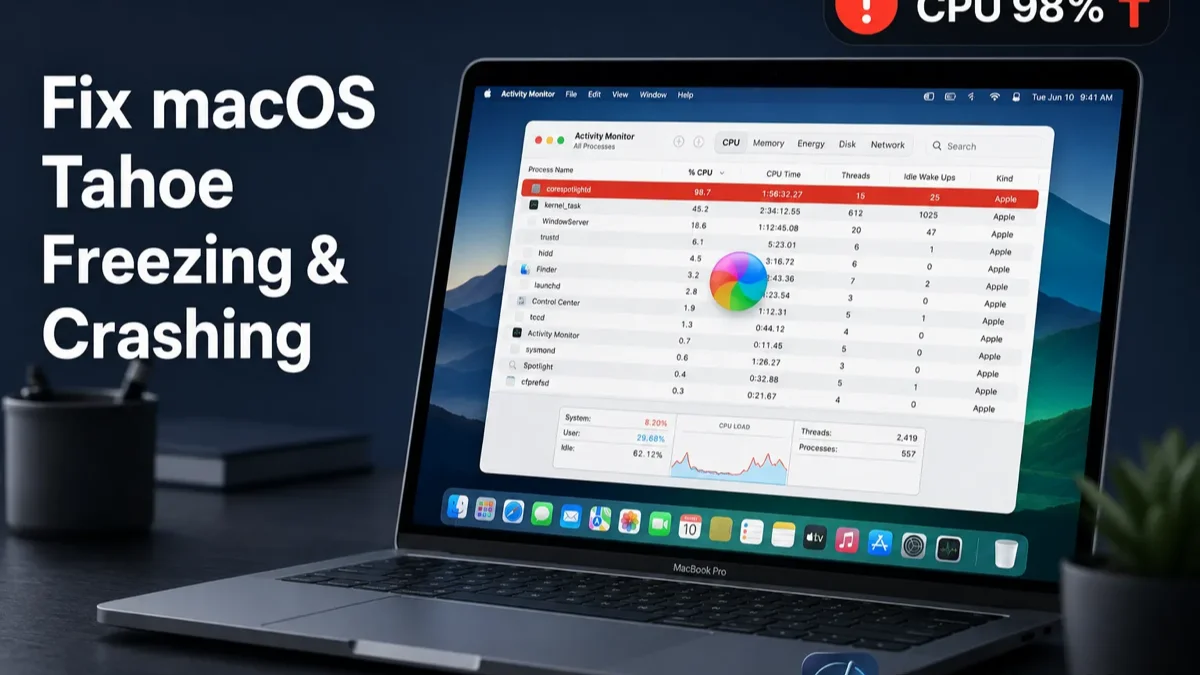
To fix macOS Tahoe freezing and crashing, go to System Settings > Spotlight and disable 'Show Related Content' and 'Help Apple Improve Search' - this stops the corespotlightd process from consuming excessive CPU. Then clear corrupted Spotlight indexes by deleting ~/Library/Metadata/CoreSpotlight/ and rebooting. If freezes persist, boot into Safe Mode (hold Power button > click Options > select Safe Boot) to clear system caches, run Disk Utility First Aid to repair disk errors, and remove incompatible Login Items. Most users report freezing stops completely after fixing Spotlight. For a thorough cleanup of corrupted caches and system junk causing instability, use DeepCleanMac.
If your Mac has been freezing randomly, showing the spinning beach ball for minutes at a time, or crashing and rebooting without warning since updating to macOS Tahoe - you're not alone. Apple Support Communities, Reddit's r/MacOS, and MacRumors forums are flooded with reports of macOS Tahoe causing persistent freezing, kernel panics, and sudden reboots across every Mac model - MacBook Pro, MacBook Air, Mac Mini, iMac, and Mac Studio.
The most common culprit is Spotlight. After updating to Tahoe, the corespotlightd process rebuilds its search index and can lock up your entire system, consuming 50-100% CPU for hours or even days. Macworld reported a case where disabling two Spotlight settings resolved the freezing immediately, which matches the pattern in a lot of user reports.
But Spotlight isn't the only problem. macOS Tahoe's Liquid Glass UI forces WindowServer to work significantly harder, memory leaks in Safari and third-party apps can exhaust available RAM, corrupted system caches from the upgrade process cause instability, and incompatible kernel extensions trigger kernel panics.
This guide walks you through five proven methods to fix macOS Tahoe freezing and crashing - starting with the Spotlight fix that resolves the issue for most users, then progressively deeper solutions for persistent cases. Every fix is tested on macOS Tahoe 26.5 and works on all Apple Silicon and Intel Macs.
5 Methods to Fix macOS Tahoe Freezing & Crashing
Method 1: Fix Spotlight Indexing (The #1 Cause of Tahoe Freezes)
Step 1: Open System Settings from the Apple menu () or Dock.
Step 2: Click 'Spotlight' in the left sidebar (or search for it in the System Settings search bar).
Step 3: Scroll down and disable 'Show Related Content' - this stops Spotlight from fetching and indexing web-based suggestions that overload corespotlightd.
Step 4: Also disable 'Help Apple Improve Search' - this prevents Spotlight from sending search data to Apple servers, which contributes to the CPU spike.
Step 5: Open Activity Monitor (Applications > Utilities), click the CPU tab, and verify that 'corespotlightd' is no longer consuming high CPU. It should drop below 5% within a few minutes.
Step 6: If corespotlightd is still consuming high CPU after disabling both settings, force-rebuild the Spotlight index: open Terminal and run: sudo mdutil -E / - this erases and rebuilds the entire index cleanly.
Macworld reported this as the fix that stopped persistent Tahoe freezing on one MacBook Pro after months of random freezes. That is a single case rather than a controlled test, but it is consistent with what users describe on the Apple Support Communities. The corespotlightd process handles Spotlight's content indexing and search suggestions - on Tahoe, it runs more aggressively than previous macOS versions, especially when 'Show Related Content' is enabled. This forces the process to continuously fetch, parse, and index web content alongside local files, which can consume 50-100% CPU and trigger system-wide freezes. Disabling these two settings doesn't affect Spotlight's core search functionality - you can still search for files, apps, and documents instantly. You only lose web suggestions and Siri Knowledge results in Spotlight, which most users don't rely on. Users on the Apple Support Communities have reported CPU load dropping quickly after toggling these settings, though results vary by machine.
Method 2: Clear Corrupted Spotlight and System Caches
Step 1: Quit all open applications.
Step 2: Open Terminal (Applications > Utilities > Terminal).
Step 3: Delete the corrupted CoreSpotlight metadata: run rm -rf ~/Library/Metadata/CoreSpotlight/ and press Return.
Step 4: Clear system-level Spotlight caches: run sudo rm -rf /.Spotlight-V100 and enter your admin password.
Step 5: Clear general system caches that may be corrupted from the Tahoe upgrade: open Finder, press Shift + Command + G, navigate to ~/Library/Caches, and delete the contents (not the folder itself).
Step 6: Restart your Mac to let macOS rebuild clean caches and a fresh Spotlight index. Keep your Mac plugged in and allow 1-2 hours for re-indexing to complete.
When macOS upgrades from Sequoia to Tahoe, system caches from the previous version can become corrupted or incompatible with the new system. Corrupted CoreSpotlight metadata is a known trigger for persistent freezing - the corespotlightd process gets stuck in a loop trying to parse damaged index files, consuming maximum CPU and locking up the system. Deleting the CoreSpotlight metadata folder forces macOS to build a completely fresh search index from scratch, eliminating the corrupted data. According to MacRumors forum reports (forums.macrumors.com), this fix resolved 'corespotlightd issues still persisting' even after disabling Spotlight suggestions. Similarly, stale ~/Library/Caches files from Sequoia can conflict with Tahoe's new frameworks, causing app crashes, beach balls, and UI freezes. Clearing these caches is safe - macOS and apps automatically regenerate them as needed. The temporary performance hit during re-indexing is a small price for permanent stability.
Method 3: Boot into Safe Mode to Diagnose and Clear System Issues
Step 1: Shut down your Mac completely (Apple menu > Shut Down).
Step 2: For Apple Silicon Macs (M1/M2/M3/M4/M5): Press and hold the Power button until 'Loading startup options' appears. Click your startup disk, then hold Shift and click 'Continue in Safe Mode.'
Step 3: For Intel Macs: Turn on your Mac, then immediately press and hold the Shift key until you see the login screen. Release Shift and log in.
Step 4: Safe Mode automatically runs a directory check of your startup disk (similar to First Aid), clears font caches, kernel caches, and other system caches, and disables all Login Items and third-party kernel extensions.
Step 5: Use your Mac in Safe Mode for 5-10 minutes. If the freezing stops in Safe Mode, the problem is caused by a Login Item, kernel extension, or corrupted cache - not a hardware issue.
Step 6: Restart normally (Apple menu > Restart without holding any keys). The cleared caches and repaired directory often resolve the freezing permanently.
Safe Mode is Apple's built-in diagnostic environment that strips your Mac down to essential system components. It disables all third-party kernel extensions (kexts), doesn't load Login Items or startup agents, clears several system-level caches (kernel cache, font cache, system caches), and performs a basic file system check on your startup disk. If your Mac runs stable in Safe Mode but freezes in normal mode, you've confirmed that the problem is software-related - specifically, a Login Item, launch agent, kernel extension, or corrupted cache. After booting into Safe Mode and restarting normally, macOS rebuilds all cleared caches from scratch using Tahoe-compatible versions. This single step resolves many freezing issues caused by leftover Sequoia caches that became incompatible after the upgrade. According to Apple Support (support.apple.com/en-us/102646), Safe Mode is the recommended first-line troubleshooting step for persistent system instability.
Method 4: Run Disk Utility First Aid to Repair File System Errors
Step 1: Open Disk Utility from Applications > Utilities (or search with Spotlight).
Step 2: In the sidebar, select your startup disk - usually named 'Macintosh HD.'
Step 3: Click the 'First Aid' button in the toolbar.
Step 4: Click 'Run' to start the scan. First Aid checks the APFS file system structure, verifies catalog file integrity, checks extent overflow files, and validates multi-linked files.
Step 5: Click 'Show Details' and scroll through the report - look for any errors marked as 'repaired' or 'could not be repaired.' If errors are found and repaired, run First Aid a second time to verify the repairs.
Step 6: If First Aid reports errors it cannot repair, boot into Recovery Mode (hold Power button > Options > Disk Utility) and run First Aid from there - Recovery Mode can fix issues that can't be repaired while macOS is running.
File system corruption is an underappreciated cause of Mac freezing and crashing. According to Apple's APFS documentation, the Apple File System is generally robust, but major macOS upgrades involve writing millions of files and modifying system-level directory structures - and power interruptions, sleep/wake cycles during the update, or SSD wear can introduce errors. Corrupted directory records cause the file system to stall when macOS tries to read affected files, which manifests as random freezes and beach balls. First Aid scans the entire APFS container and volume structure, checking for: invalid B-tree nodes, incorrect block counts, orphaned files, corrupted catalog records, and snapshot inconsistencies. Running First Aid from Recovery Mode is more thorough because it can unmount and check the startup volume directly. Users on the Apple Support Communities have reported First Aid resolving persistent Tahoe crashing that other fixes did not - especially on Macs that experienced a power interruption or forced shutdown during the Tahoe update process.
Method 5: Remove Incompatible Login Items and Kernel Extensions
Step 1: Open System Settings > General > Login Items & Extensions.
Step 2: Under 'Open at Login,' remove all third-party apps by clicking the minus (-) button. Common freeze-causing Login Items: antivirus software (Norton, McAfee, Kaspersky), VPN clients (NordVPN, ExpressVPN), virtualization tools (Parallels, VMware), and system utilities (Bartender, iStat Menus older versions).
Step 3: Scroll down to 'Allow in the Background' and disable all non-essential background agents. Re-enable them one at a time over several days to identify which one causes the freeze.
Step 4: Check for incompatible kernel extensions: open Terminal and run kextstat | grep -v apple to list all non-Apple kernel extensions. Note any from apps you've uninstalled.
Step 5: Remove orphaned kernel extensions by deleting their .kext files from /Library/Extensions/ - you'll need admin privileges. Restart after removing kexts.
Step 6: Check ~/Library/LaunchAgents and /Library/LaunchAgents for .plist files belonging to apps you've uninstalled. Delete these orphaned launch agents and restart.
Incompatible third-party software is the second most common cause of macOS Tahoe freezing after Spotlight. Kernel extensions (kexts) that worked on Sequoia may not be compatible with Tahoe's new kernel, and they can trigger kernel panics - the most severe type of crash where your Mac displays a black screen with a restart message or simply reboots without warning. Antivirus software is a particularly common offender because it installs kernel-level file system filters that intercept every file operation - if these filters aren't updated for Tahoe, they can deadlock the system. VPN clients that install network kernel extensions can cause similar issues. Login Items and launch agents are a subtler problem: they don't usually cause kernel panics, but they can cause UI freezes and beach balls if they conflict with Tahoe's new frameworks or consume excessive resources. The 'one at a time' re-enabling approach is the most reliable way to identify the specific culprit without guessing. Most users find that 2-3 outdated background agents were responsible for their Tahoe instability.
Common Causes of macOS Tahoe Freezing & Crashing
macOS Tahoe freezing and crashing can stem from multiple causes, often acting simultaneously. Understanding the specific cause helps you apply the right fix first:
| Freeze/Crash Cause | Symptoms and Details |
|---|---|
| Spotlight Overload (corespotlightd) | The corespotlightd process consumes 50-100% CPU while rebuilding the Tahoe search index. Causes system-wide freezes, spinning beach balls lasting 30-60 seconds, and unresponsive UI. Most common in the first week after updating but can persist indefinitely if 'Show Related Content' is enabled. |
| Corrupted System Caches | Stale caches from Sequoia that became incompatible after the Tahoe upgrade. Corrupted kernel cache, font cache, or CoreSpotlight metadata cause random app crashes, UI glitches, and intermittent freezes. Affects all Mac models. Resolved by Safe Mode boot or manual cache clearing. |
| WindowServer High CPU/GPU | Liquid Glass rendering forces WindowServer to use 20-40% more GPU than Sequoia. On older Macs (M1, Intel) or when many windows are open, this causes UI lag, stuttering animations, and temporary freezes. Worsened by multiple displays or Electron apps running simultaneously. |
| Memory Leaks (Safari, Third-Party Apps) | Apps that don't release RAM properly cause memory pressure to spike. macOS responds by aggressively swapping to disk, which freezes the entire system. Safari with 20+ tabs, Chrome, and Adobe apps are common offenders. Symptoms: gradually worsening performance that culminates in a hard freeze. |
| Kernel Panics (Incompatible Kexts) | Third-party kernel extensions not updated for Tahoe trigger kernel panics - your Mac shows a black screen with 'Your computer restarted because of a problem' or silently reboots. Common culprits: antivirus software, VPN clients, virtualization tools, and USB/audio drivers. |
| APFS File System Errors | Corrupted directory records or B-tree nodes on the APFS volume cause macOS to stall when accessing affected files. Can result from power loss during the Tahoe update, SSD wear, or forced shutdowns. Symptoms: random freezes when opening specific apps or files, and Finder beach balls. |
Why macOS Tahoe Freezes More Than Sequoia
macOS Tahoe's freezing and crashing issues aren't caused by a single bug - they're the result of several architectural changes colliding with accumulated system debt.
Spotlight is the biggest offender. macOS Tahoe significantly expanded Spotlight's indexing scope to support Apple Intelligence features, Siri contextual awareness, and enhanced search suggestions. The corespotlightd process now indexes not just file metadata but also content previews, document text, and web-related suggestions - all simultaneously. When 'Show Related Content' is enabled, Spotlight continuously fetches and parses web content in the background, which can overwhelm the CPU on any Mac. Macworld reported a MacBook Pro case where disabling two Spotlight settings resolved the freezing immediately. Individual reports are not proof of a single root cause, but Spotlight indexing comes up often enough to be worth ruling out first.
The second major factor is Liquid Glass. WindowServer, the system process that renders everything on screen, now performs real-time transparency compositing with depth simulation and light refraction on every window, menu, and sidebar. This is fundamentally more GPU-intensive than Sequoia's flat UI. On Macs with limited GPU resources (M1 MacBook Air, Intel Macs) or when many windows are open, WindowServer can max out the GPU, causing UI stuttering and temporary freezes.
The third factor is the upgrade process itself. Upgrading from Sequoia to Tahoe carries over millions of cached files, preferences, launch agents, and kernel extensions from the previous system. Many of these are incompatible with Tahoe's new frameworks, kernel, and system libraries. Corrupted caches cause random instability, orphaned launch agents consume CPU for nothing, and outdated kernel extensions can trigger kernel panics. A clean cache rebuild (via Safe Mode) and removal of orphaned system files resolves these conflicts.
Finally, memory management issues in macOS Tahoe have been widely reported. Safari, in particular, has exhibited memory leaks where tab processes don't release RAM properly, causing memory pressure to build until the system freezes. Apple has partially addressed this in Tahoe 26.5.1, but users with many browser tabs or memory-intensive workflows may still encounter the issue.
As one Apple Support Community user summarized after months of troubleshooting: 'The CPU load dropped almost instantly after disabling Show Related Content - the corespotlightd process dropped off the list of CPU percentage drainers, and the intermittent pauses stopped completely.' The bottom line: most Tahoe freezing is software-fixable. The Spotlight fix alone resolves the issue for the majority of users, and the remaining causes are addressed by cache clearing, Safe Mode, disk repair, and Login Item management.
Tips for Preventing macOS Tahoe Freezes
1. Keep Spotlight settings optimized
After applying the Spotlight fix, keep 'Show Related Content' and 'Help Apple Improve Search' disabled permanently. These settings offer minimal benefit (only web suggestions in Spotlight results) but can cause significant CPU overhead. Spotlight's core functionality - searching files, apps, documents, emails, and contacts - works perfectly without them. This single setting change prevents the most common cause of Tahoe freezing from recurring.
2. Restart your Mac at least once a week
macOS Tahoe is more prone to memory leaks than Sequoia, particularly in Safari and WindowServer. Restarting clears all accumulated memory leaks, rebuilds temporary caches, and resets WindowServer's GPU state. If you typically keep your Mac in sleep mode for weeks, switching to a weekly restart schedule can prevent the gradual performance degradation that leads to freezing. A restart takes under 30 seconds on Apple Silicon Macs.
3. Keep macOS Tahoe and all apps updated
Apple has released multiple Tahoe point updates (26.1 through 26.5.1) that address stability, memory management, and WindowServer performance issues. Each update fixes specific bugs that cause freezing and crashing. Similarly, third-party app developers have been releasing Tahoe-compatible updates - running outdated versions of apps is a common cause of crashes. Check System Settings > General > Software Update for macOS updates, and the App Store for app updates regularly.
4. Monitor Activity Monitor for CPU spikes
Keep Activity Monitor accessible (add it to your Dock) and check the CPU tab when you notice slowdowns. Sort by '% CPU' to identify any process consuming more than 30% CPU while idle. Common offenders on Tahoe: corespotlightd, mds_stores, WindowServer, photoanalysisd, and kernel_task. If you see a process spiking repeatedly, search for its name plus 'macOS Tahoe fix' to find targeted solutions. Catching CPU spikes early prevents them from escalating into full system freezes.
5. Manage browser tabs aggressively
Browser memory leaks are a leading cause of gradual performance degradation on Tahoe. Safari with 20+ tabs can consume 8-12GB of RAM, and Chrome is even more memory-hungry. Use Safari's built-in tab management: right-click the tab bar and select 'Close Other Tabs' regularly. Enable 'Automatically close tabs' in Safari Settings > Tabs to close inactive tabs after a period. If you use Chrome, install a tab suspender extension that unloads inactive tabs from memory. Keeping fewer than 15 active browser tabs significantly reduces freeze risk.
6. Clean system junk after every macOS update
Every major macOS update leaves behind 3-10GB of stale caches, old system files, and orphaned data that can cause instability. Running a system cleanup after updating to Tahoe removes corrupted caches, leftover Sequoia files, and orphaned app support data that conflicts with the new system. DeepCleanMac scans 200+ hidden system locations and identifies exactly what's safe to remove in under 30 seconds - eliminating the hidden junk that contributes to Tahoe's freezing and crashing issues.
How DeepCleanMac Helps Fix Mac Freezing
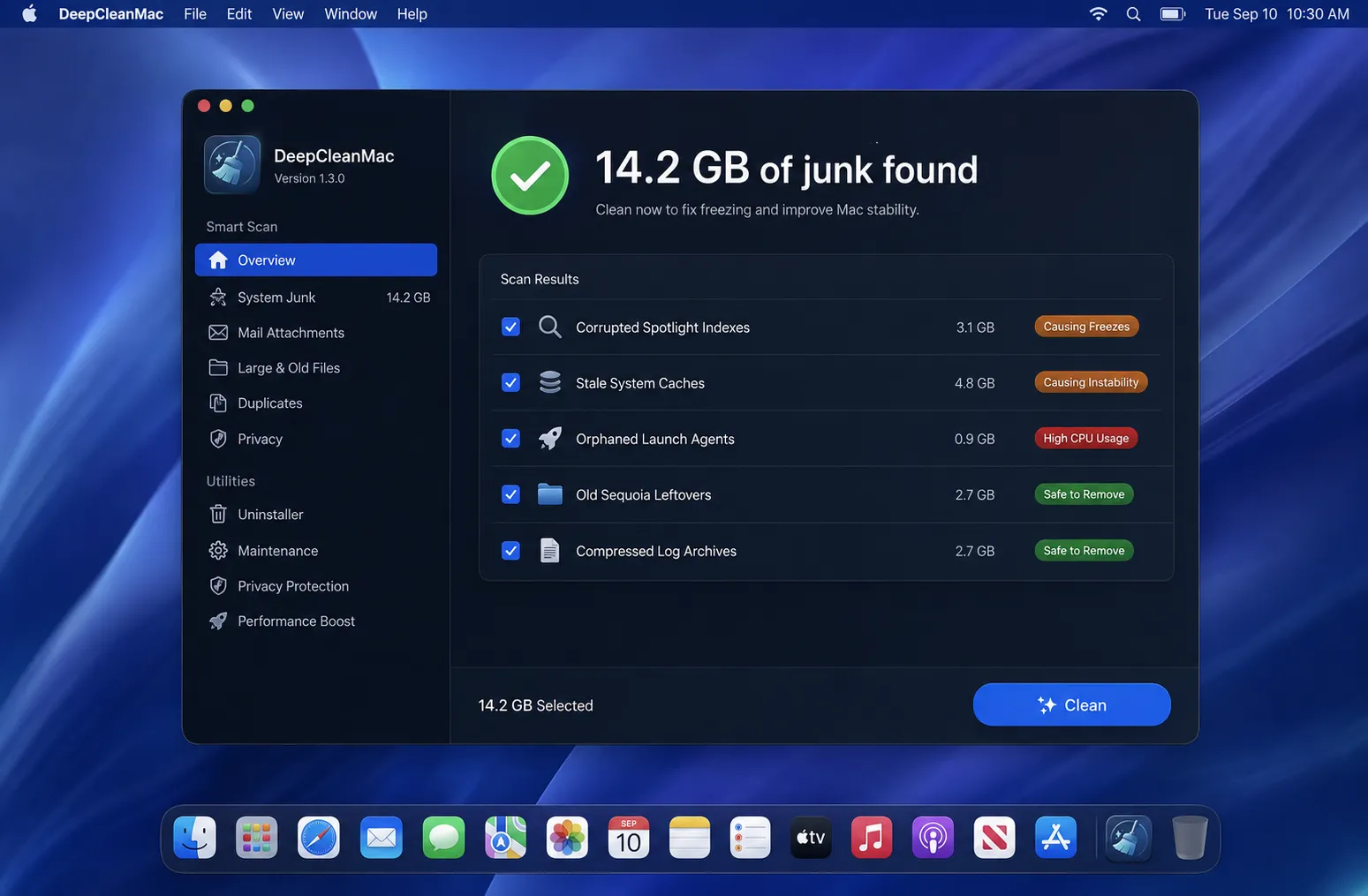
DeepCleanMac targets the hidden system junk that contributes to macOS Tahoe freezing and instability. After upgrading from Sequoia to Tahoe, your Mac carries gigabytes of stale caches, orphaned Application Support folders from uninstalled apps, leftover launch agents running silent background processes, outdated log files, and old installer data - all of which can conflict with Tahoe's new system frameworks and cause random freezes, crashes, and beach balls.
DeepCleanMac scans 200+ hidden system locations in under 30 seconds, finding corrupted caches that Safe Mode might miss, orphaned launch agents that consume CPU for nothing, stale preferences from apps you removed months ago, and compressed log archives that waste disk space and increase indexing load.
Whatever it finds is disk pressure removed - and disk pressure is what forces macOS into aggressive swap management, which is a direct cause of system freezing when RAM is under pressure. The cleanup is a single click, and DeepCleanMac never touches active system files, personal documents, or anything your Mac depends on. Download DeepCleanMac free and remove the hidden system junk that's making macOS Tahoe unstable.
Frequently Asked Questions
Why does my Mac keep freezing after updating to macOS Tahoe?
▾
One of the most frequently reported causes is Spotlight's corespotlightd process consuming heavy CPU while rebuilding the search index for Tahoe. This is worsened when 'Show Related Content' is enabled in Spotlight settings, which forces continuous web content indexing alongside local files. Other causes include corrupted system caches carried over from Sequoia, WindowServer GPU overload from Liquid Glass rendering (20-40% higher GPU usage per OS X Daily), memory leaks in Safari and third-party apps, and incompatible kernel extensions. The Spotlight fix (disabling 'Show Related Content' and 'Help Apple Improve Search' in System Settings > Spotlight) resolves freezing for the majority of affected users.
What is corespotlightd and why is it using so much CPU?
▾
corespotlightd is the macOS process responsible for building and maintaining Spotlight's search index. On macOS Tahoe, it runs more aggressively than previous versions because it now indexes content for Apple Intelligence, Siri suggestions, and enhanced search features. When 'Show Related Content' is enabled, it also continuously fetches and parses web-based suggestions, which can consume 50-100% CPU. Disabling this setting in System Settings > Spotlight stops the web indexing while keeping local file search fully functional.
Will booting into Safe Mode fix macOS Tahoe freezing permanently?
▾
In many cases, yes. Safe Mode automatically clears kernel cache, font cache, and other system-level caches, performs a directory check on your startup disk, and disables third-party kernel extensions and Login Items. When you restart normally after a Safe Mode boot, macOS rebuilds all caches using Tahoe-compatible versions, which can permanently resolve freezing caused by corrupted leftover caches from Sequoia. However, Safe Mode won't fix the Spotlight indexing issue - you still need to disable 'Show Related Content' separately.
How do I know if my Mac is having kernel panics?
▾
Kernel panics manifest as either a black or dark screen with a message saying 'Your computer restarted because of a problem,' or your Mac suddenly rebooting without any warning. After a kernel panic, you'll see a notification when macOS restarts asking if you want to report the issue to Apple. You can also check Console (Applications > Utilities > Console) and search for 'panic' in system logs to see detailed crash reports. Kernel panics on Tahoe are usually caused by incompatible third-party kernel extensions from antivirus, VPN, or virtualization software.
Is macOS Tahoe freezing a hardware problem?
▾
In the vast majority of cases, no. macOS Tahoe freezing is caused by software issues - primarily Spotlight indexing overload, corrupted caches, and incompatible third-party software. You can confirm this by booting into Safe Mode: if your Mac runs stable in Safe Mode, the problem is software-related. However, if freezing persists in Safe Mode and after applying all five fixes in this guide, run Apple Diagnostics (shut down, then hold Power button and press D) to check for hardware issues like failing SSD or faulty RAM. Macs with SSDs at very high wear levels can exhibit similar symptoms.
Why is WindowServer using so much CPU and GPU on macOS Tahoe?
▾
WindowServer renders everything visible on your Mac's screen - windows, menus, the Dock, animations, and transparency effects. macOS Tahoe's Liquid Glass UI requires WindowServer to perform real-time transparency compositing with depth simulation and light refraction on every interface element, which is significantly more GPU-intensive than Sequoia's flat design. High WindowServer usage causes UI stuttering, laggy window dragging, and temporary freezes - especially with multiple displays or many open windows. Enabling 'Reduce Transparency' (System Settings > Accessibility > Display) dramatically reduces WindowServer's GPU load.
Should I do a clean install of macOS Tahoe to fix freezing?
▾
A clean install should be a last resort. The five methods in this guide resolve macOS Tahoe freezing for the vast majority of users without erasing your Mac. Start with the Spotlight fix, which alone resolves most freezing cases. If all five methods fail, a clean install will eliminate all corrupted caches, incompatible extensions, and orphaned files - but it requires backing up your data and reinstalling all your apps. Before committing to a clean install, try the less invasive approaches first: they take minutes and preserve everything on your Mac.
macOS Tahoe freezing and crashing is frustrating, but in almost every case it's a software problem with a clear fix. The Spotlight indexing overload - caused by the corespotlightd process running out of control - is responsible for the majority of Tahoe freezes, and disabling 'Show Related Content' in Spotlight settings resolves it instantly. For persistent cases, clearing corrupted caches, booting into Safe Mode, running Disk Utility First Aid, and removing incompatible Login Items and kernel extensions address every other known cause. The key takeaway: don't live with a freezing Mac. These fixes take minutes, not hours, and most users report their Mac running stable immediately after applying them. Much of Tahoe's instability comes from accumulated system junk - stale caches, orphaned files, and leftover data from Sequoia that conflicts with the new system. DeepCleanMac scans 200+ hidden locations and removes the junk that's adding to the load on your Mac, showing you what it found with sizes before anything is deleted. Download DeepCleanMac free and give your Mac the clean foundation it needs to run macOS Tahoe without freezing.
Free download. Scans 200+ hidden locations in seconds.