
Apple Intelligence Is Using 20-30GB on macOS 27: What You Can and Cannot Get Back
Quick Answer
On macOS 27 Golden Gate, Apple Intelligence downloads its on-device models automatically the first time your Mac goes online, and the master switch that used to turn it off and delete the models is gone. Apple says the models need up to 14GB on M3-or-later Macs with 12GB or more of memory and up to 8GB on other supported Macs, but measured figures run from about 14GB on an M1 MacBook Air and a MacBook Neo to more than 30GB on some machines. There is no supported way to delete them: turning individual features off stops the background work but does not free the space. What you can do is measure the real footprint with du, rule out snapshots and leftover installers that get blamed on AI, and reclaim the same 20-30GB from caches, old backups and installers that genuinely are safe to remove.
You upgraded to macOS 27, left the Mac online overnight, and woke up to 20GB less free space than you had the evening before. System Data jumped, nothing you installed explains it, and if you have a 256GB MacBook Air, Mac mini or MacBook Neo, that one download is close to a tenth of your drive.
This is Apple Intelligence. On Golden Gate it is no longer an optional feature you opt into - Siri AI and Apple Intelligence ship as a mandatory part of the system, the models download on their own, and the toggle that used to switch the whole thing off and delete the models has been removed. It landed in the news in the week after release, when MacRumors measured 20.67GB on an M4 Pro Mac mini and readers posted screenshots showing more than 30GB.
This guide gives you the honest version. It shows you how to measure what Apple Intelligence is really using, because the number in System Settings is not the number on disk. It explains which settings help and which do not, what the undocumented Recovery-mode deletion people are passing around actually involves, and how to get an equivalent amount of space back from places where deleting things is safe.
5 Steps to Deal With Apple Intelligence Storage on macOS 27
Method 1: Measure What Apple Intelligence Is Really Using
Step 1: Open Apple menu > System Settings > General > Storage and wait for the bar to finish calculating.
Step 2: Click the info button next to macOS. On Golden Gate, Apple Intelligence appears as its own line inside the macOS breakdown. Note the figure.
Step 3: Open Terminal from Applications > Utilities.
Step 4: Run: ls -ld /System/Volumes/Data/System/Library/AssetsV2/com_apple_MobileAsset_UAF_FM*
Step 5: You should see up to three folders: com_apple_MobileAsset_UAF_FM_GenerativeModels (the language models, by far the largest), com_apple_MobileAsset_UAF_FM_Visual (image models) and com_apple_MobileAsset_UAF_FM_Overrides (a few megabytes).
Step 6: Measure them with: sudo du -sh /System/Volumes/Data/System/Library/AssetsV2/com_apple_MobileAsset_UAF_FM*
Step 7: If Terminal reports Operation not permitted, give it Full Disk Access in System Settings > Privacy & Security > Full Disk Access, quit and reopen it, then run the command again.
Step 8: Write down both numbers - the Storage figure and the du total. You need them to judge whether anything later in this guide helped.
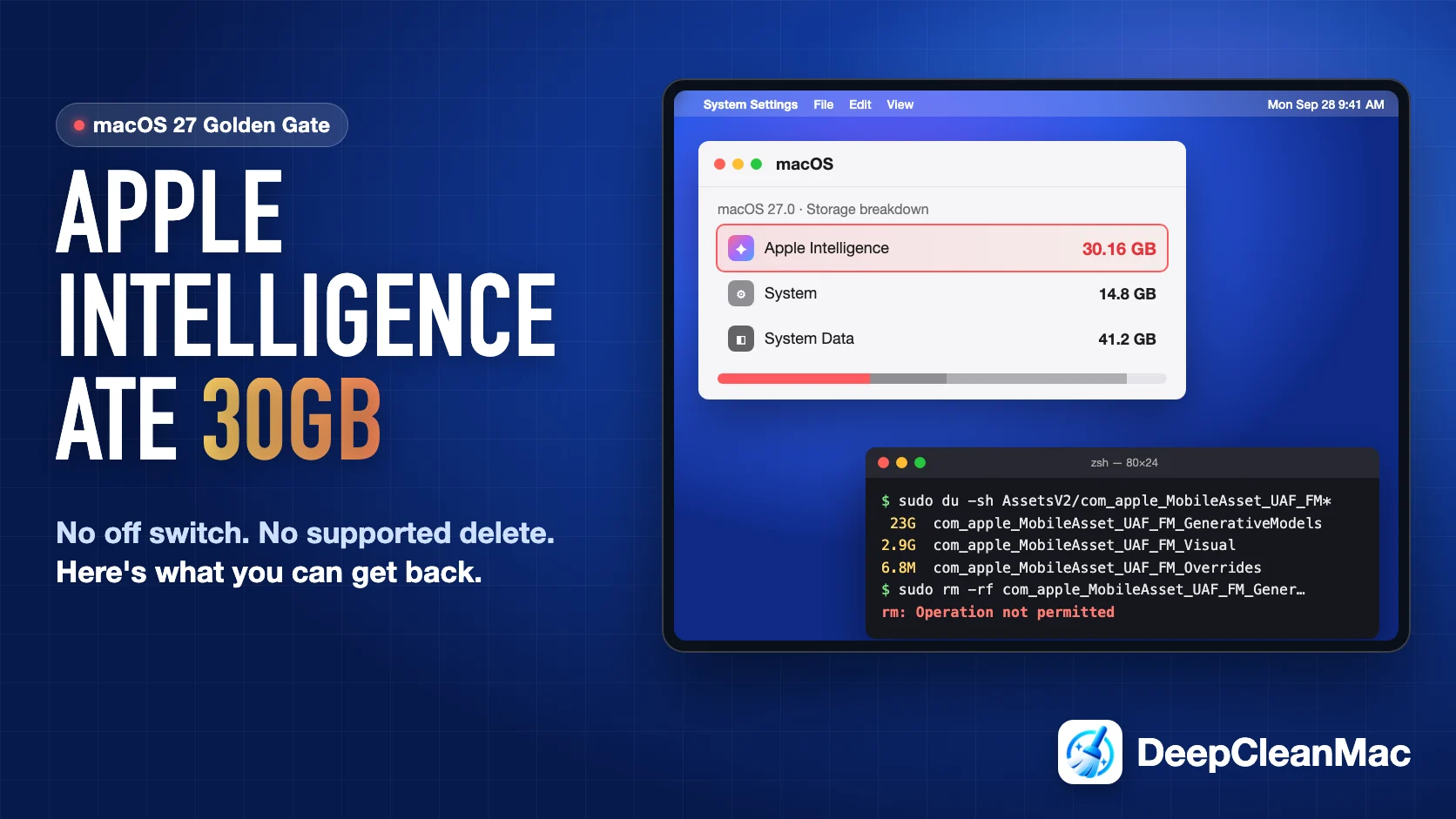
Do not skip the du step, because the figure in System Settings is an attribution, not a measurement. Apple's own support document does not say whether its up-to-14GB figure is comparable with the Apple Intelligence line in Storage, and it does not explain why some Macs show far more. The best evidence so far comes from AppleInsider, which removed a 23GB GenerativeModels folder on a test Mac and gained about 14GB of free space - noticeably less than the Storage pane had attributed to the feature. So if Storage says 30GB and du says 16GB, the smaller number is the one that will come back if the models ever go away, and the gap is being counted somewhere it should not be. For reference, published measurements so far: about 14GB on an M1 MacBook Air and a MacBook Neo (Apple says up to 8GB for both), 20.67GB on an M4 Pro Mac mini, 22.42GB on an M3 MacBook Air, 24.35GB on an M3 Pro MacBook Pro, and 30.16GB on one release-candidate install.
Method 2: Rule Out What Is Being Blamed on Apple Intelligence
Step 1: In Terminal, run: df -h / and note the Avail figure. This is the space applications can actually use.
Step 2: Compare it against the free space shown in System Settings > General > Storage. A gap of tens of gigabytes is purgeable space, not AI models.
Step 3: Run: tmutil listlocalsnapshots / and count the entries. Dozens of snapshots, or ones days old, mean Time Machine is pinning space.
Step 4: Check /Applications for a leftover Install macOS Golden Gate app. The installer is about 18GB and does not always remove itself after the upgrade.
Step 5: Check System Settings > General > Software Update. A staged but uninstalled point update also sits in System Data until it installs.
Step 6: Give the Mac 48 hours after the upgrade. Spotlight re-indexing and iCloud re-sync temporarily inflate System Data and settle down on their own.
Step 7: Re-measure. Whatever is left after snapshots, installers and indexing are accounted for is the real Apple Intelligence cost.
Apple Intelligence lives inside System Data, and System Data is where every unexplained gigabyte ends up, so the AI models get blamed for things they did not do. Straight after an upgrade that category also holds staging files, re-index data and whatever local snapshots Time Machine took while the installer was running. Snapshots are the big one: they pin blocks until they expire, so the space from the previous macOS install can hang around for a day or more after the upgrade finishes. If df and Storage disagree by more than a few gigabytes, deal with snapshots first - the Time Machine snapshots guide covers the tmutil commands - and only then decide how much of your missing space is actually AI.
Method 3: Turn Off the Features You Do Not Use
Step 1: Open System Settings > Apple Intelligence & Siri.
Step 2: Note that on macOS 27 there is no longer a master Apple Intelligence switch at the top. Features are controlled individually.
Step 3: If you do not want the new assistant, switch Siri AI (Beta) off to return to Siri Classic.
Step 4: Turn off summaries and suggestions you do not use - notification summaries, and the summary options in Mail, Messages and Journal.
Step 5: If you manage the Mac for someone else, use Screen Time > Content & Privacy to restrict Apple Intelligence features.
Step 6: Re-run the du command from step 1 after a day to confirm what, if anything, changed.
Be clear about what this achieves. Switching features off stops background work - summarising, indexing content for Siri, generating suggestions - which helps battery life and memory pressure, especially on 8GB Macs. None of these controls is documented to delete the models, and in testing so far they do not. On Tahoe and Sequoia, turning Apple Intelligence off was the supported way to get the space back; if you read that in an older guide, including earlier versions of our own, it no longer applies on Golden Gate. There is one unverified report of a workaround: an Apple Community user found the space cleared some time after setting Siri to a different English variant from the device language, which makes Apple Intelligence unavailable. That report came from iPadOS, the user was not sure which change caused it, and Apple documents no such behaviour. Treat it as a curiosity, not a fix.
Method 4: Win the Same 20-30GB Back From Places That Are Safe
Step 1: Delete any leftover Install macOS app from /Applications. That is roughly 18GB on its own and nothing depends on it after the upgrade.
Step 2: Thin local snapshots if step 2 showed a large gap: sudo tmutil thinlocalsnapshots / 50000000000 4
Step 3: Open System Settings > General > Storage and click the info button next to iOS Files. Old iPhone and iPad backups are frequently 10-60GB each.
Step 4: In the same Storage view, review Documents > Large Files and Downloads. Old disk images and installers collect there.
Step 5: Clear user caches in ~/Library/Caches. Apps rebuild them as needed, but close the app first.
Step 6: If you develop on the Mac, clear Xcode DerivedData, old simulator runtimes and package-manager caches. These alone regularly exceed 50GB.
Step 7: Re-run df -h / and compare against the number you wrote down in step 1.
This is the step that actually solves the problem for most people. You cannot remove the models through any supported route, but on almost every Mac that has been through a major upgrade there is at least as much reclaimable space sitting in places nobody looks. The leftover installer alone nearly cancels out the smaller Macs' AI footprint. The ordering matters too: clear snapshots before deleting files, because a snapshot holds the blocks of anything you delete until it expires, and cleaning without thinning first makes it look as though nothing worked for 24 hours.
Method 5: Understand the Recovery-Mode Deletion Before You Try It
Step 1: Know what it is. The method circulating on AppleInsider, Gadget Hacks and GitHub boots the Mac into Recovery, where the system volume protections do not apply, and deletes the com_apple_MobileAsset_UAF_FM_GenerativeModels folder from the Data volume with rm -rf.
Step 2: Know what it recovered in practice. AppleInsider's test Mac had a 23GB GenerativeModels folder, deleted only that folder, booted normally, and gained about 14GB.
Step 3: Know that it does not stay gone. A beta tester saw macOS start downloading the missing models again as soon as Low Data Mode was switched off, so the space is only kept while that setting stays on.
Step 4: Know what you lose. Every Apple Intelligence feature that depends on the language models stops working, and nothing tells you in advance which apps will fail quietly.
Step 5: Know the risk. It is an rm -rf run as root on your Data volume from a Recovery shell. A mistyped path or a Data volume with a different name can destroy data or leave the Mac unable to boot.
Step 6: If you still want to do it, make a full Time Machine or clone backup first and follow AppleInsider's walkthrough exactly, confirming the path with pwd before deleting anything.
We are describing this rather than recommending it, because people will find it anyway and should know what they are signing up for. Apple does not document or support it. The payback is smaller than the Storage figure suggests, the models come back unless you keep the Mac in Low Data Mode indefinitely, and the next point update may restore them regardless. For most people the arithmetic does not work: reclaiming 14GB of models this way takes more risk than reclaiming 14GB of caches, installers and old backups, and the second 14GB stays gone. The only case where it makes sense is a Mac you are certain will never use Apple Intelligence, owned by someone comfortable in a Recovery shell, with a current backup.
Where Apple Intelligence Storage Actually Lives
Apple Intelligence on Golden Gate is not one file. Here is what makes up the footprint, how big each part tends to be, and whether any of it comes back.
| What Is Using the Space | Size and Whether You Get It Back |
|---|---|
| Generative language models | Roughly 12-23GB, and no, not through any supported route. This is the com_apple_MobileAsset_UAF_FM_GenerativeModels folder, and M3-or-later Macs with 12GB of memory or more get the larger AFM 3 Core Advanced model. It sits in a root-owned system location protected by System Integrity Protection, and macOS re-downloads it if it goes missing. |
| Visual models | Around 3GB, and no. The com_apple_MobileAsset_UAF_FM_Visual folder holds the image understanding and generation models used by Image Playground and Visual Intelligence. It was 2.9GB on AppleInsider's test Mac. Nobody has reported a supported way to remove it separately. |
| Storage-pane attribution beyond the model files | Varies from a few GB to over 10GB, and it may shrink on its own. On at least one tested Mac the Storage pane attributed far more to Apple Intelligence than deleting the models actually freed. Compare the du figure with the Storage figure - the difference is not model data, and some of it is likely indexing or staging that settles after the first few days. |
| Apple Intelligence user cache | Small, and yes, recoverable. Per-user cache data lives in ~/Library/Containers/com.apple.NeptuneOneExtension/Data/Library/Caches. It is rebuilt as needed and is safe to clear, but it is a rounding error next to the models - do not expect it to fix a 20GB problem. |
| Extra space on your Time Machine drive | About 10GB, and no. Independent measurement on an M4 Pro found Golden Gate added roughly 10GB to what Time Machine stores, attributed to Apple Intelligence components, and the increase held over 38 days. On a backup drive that was already close to full, that pushes out your oldest restore points. |
| Snapshots and installers blamed on AI | Often 20-60GB, and yes, fully recoverable. Local snapshots taken during the upgrade and a leftover 18GB Install macOS app both land in System Data next to the AI models, and are regularly mistaken for them. These are the parts of a post-upgrade storage drop you can actually do something about. |
Why You Cannot Simply Switch It Off Anymore
Until macOS 27 there was a clean answer to this question. You opened Apple Intelligence & Siri, switched off the master toggle at the top, and macOS removed the models in the background. Our own earlier guides said exactly that, and on Tahoe it was true.
Golden Gate changed the model. Siri AI and Apple Intelligence are now part of the base system rather than an optional download, and since Tahoe, third-party apps can call Apple's on-device models directly through the Foundation Models framework. Once other apps depend on the models being present, they stop being a feature a user can remove and become a shared system resource, like the fonts or the speech voices. That is why the master switch went, and it is why the models download on their own the first time the Mac is online.
The practical consequence is that Apple Intelligence now behaves like the rest of the operating system: a fixed cost that comes with the OS version. Apple's figure is up to 14GB on M3-or-later Macs with at least 12GB of memory and up to 8GB elsewhere, and measured reality is higher. On a 1TB Mac that is irritating. On a 256GB Mac, where a fresh Golden Gate install already leaves you just under 200GB, it is a real cost that competes with your photos and your work.
The smaller Macs are hit hardest in a second way too. The M1 MacBook Air and the MacBook Neo sit in Apple's up-to-8GB tier, yet both measured about 14GB. And the new M6 and M5 Pro Mac mini has soldered storage, so the cheap third-party SSD upgrade that worked on the M4 mini is no longer an option. Buying your way out of a full drive is harder in 2026 than it has been for years, which is exactly why reclaiming space elsewhere matters.
How to Live With Apple Intelligence on a Small Drive
Budget 20-30GB for the OS, not 12
When planning space on a Golden Gate Mac, treat Apple Intelligence as part of the operating system and assume the high end of the measured range rather than Apple's figure. If you are about to buy a Mac, that makes 256GB a genuinely tight configuration for anyone who keeps photos or code locally.
Keep 35GB free for the next update
Point updates may ship refreshed models alongside the OS. Staging an update needs substantial free space, and an update that fails midway on a nearly full disk is harder to recover from than one that refuses to start. Keep a margin rather than running the drive close to full.
Measure with df and du, not the Storage bar
The Storage pane counts purgeable space as free and attributes space to categories in ways Apple does not document. df -h / tells you what applications can actually use, and du on the AssetsV2 folders tells you what the models really occupy. Those are the two numbers worth tracking.
Watch for the installer every major upgrade
The Install macOS app is about 18GB and does not always remove itself. Checking /Applications after every major upgrade is the single highest-value habit on a small Mac, and it more than offsets the AI footprint on the base models.
Do not delete protected system files by hand
Scripts that disable SIP or delete folders under /System promise quick gains. The gains are smaller than advertised, the models re-download, and a single mistyped path in a root shell can cost you far more than 20GB. Clean the places designed to be cleaned.
Record your numbers and wait for Apple
Apple has not explained the gap between its published figures and measured usage. Note your Mac model, chip, memory, macOS build, the Storage figure and the du figure. If a point update changes the models, you will know within a minute whether it helped.
How DeepCleanMac Helps With Apple Intelligence Storage
Let us start with what DeepCleanMac does not do, because on this topic it matters. It does not delete Apple Intelligence models. They live in a SIP-protected system location, macOS re-downloads them when they go missing, and any cleaner claiming to remove them safely from a running system is either wrong or not telling you how. We will not ship that.
What DeepCleanMac does is the part of this guide that actually gets your space back. It scans 200+ hidden locations in under 30 seconds and shows every result with its size before anything is removed: user and system caches, logs, crash reports, leftover installers, old iOS backups, orphaned Application Support folders from apps you deleted long ago, and the small Apple Intelligence user cache. If you develop on the Mac, the Developer section covers Xcode derived data, archives, simulator runtimes and caches for npm, Homebrew, Cargo, Go, pip and around twenty other tools.
The dashboard also shows your purgeable space and local snapshot count next to real free space, so you can tell at a glance whether the missing gigabytes are AI models, snapshots or clutter - the question method 2 exists to answer.
The scan is free and shows you the full list with sizes before you decide anything. A license is $5 a year or $9 for a lifetime. Download DeepCleanMac and win back the space Apple Intelligence took.
Frequently Asked Questions
How much storage does Apple Intelligence use on macOS 27?
▾
Apple says up to 14GB on M3-or-later Macs with at least 12GB of memory and up to 8GB on other supported Macs. Measured figures are higher: about 14GB on an M1 MacBook Air and a MacBook Neo, 20-24GB on M3 and M4 Pro machines, and over 30GB on one release-candidate install.
Can I turn off Apple Intelligence on macOS 27?
▾
Not entirely. Golden Gate removed the master switch. You can still turn off individual features, including switching Siri AI (Beta) back to Siri Classic, but the on-device models download and stay regardless of those settings.
Does turning off Apple Intelligence features free up storage?
▾
No. Disabling features stops background work, which helps battery and memory, but none of the controls is documented to delete the models, and they do not in testing so far. Guides written for Tahoe or Sequoia that say otherwise no longer apply to macOS 27.
Where are the Apple Intelligence model files stored?
▾
In /System/Volumes/Data/System/Library/AssetsV2, in folders beginning com_apple_MobileAsset_UAF_FM - GenerativeModels for the language models, Visual for image models, and a small Overrides folder. They are root-owned and protected by System Integrity Protection.
Is it safe to delete the Apple Intelligence folder from Recovery mode?
▾
It is undocumented and unsupported. AppleInsider tested it and the Mac booted normally, gaining about 14GB, but the models re-download unless Low Data Mode stays on, and a mistyped command in Recovery can cause data loss. Back up first if you try it, and understand you are trading safety for temporary space.
Why does Storage show more than the model folders actually use?
▾
Apple has not explained it. Apple's support document does not say whether its figures are comparable with the Storage category. In AppleInsider's test, deleting a 23GB folder freed about 14GB. Use du on the model folders for a measurement rather than relying on the Storage attribution.
Is 256GB enough for a Mac on macOS 27?
▾
For browsing, email and documents with photos in iCloud, yes. A fresh install leaves just under 200GB free on a 256GB MacBook Neo, before apps and data. If you keep a large photo library, edit video or write code, the extra 20-30GB taken by Apple Intelligence makes 512GB the safer choice.
Apple Intelligence on macOS 27 is no longer a feature you can switch off to get your space back - it is part of the operating system, and on some Macs it costs 20-30GB. Accepting that is the first step, because it points you at the problem you can actually solve. Measure the real footprint with du rather than trusting the Storage bar. Rule out the snapshots and leftover installer that get blamed on AI. Turn off the features you do not use for the battery and memory benefit, not the storage. Then take the 20-30GB back from caches, old backups, installers and developer data, where deleting things is safe and the space stays gone. DeepCleanMac scans 200+ of those locations and shows you every result with its size before you remove anything. Download it free and see how much you can win back.
Free download. Scans 200+ hidden locations in seconds.