
How to Clean Up Local AI Models on Mac and Reclaim 50-100GB (2026)
Quick Answer
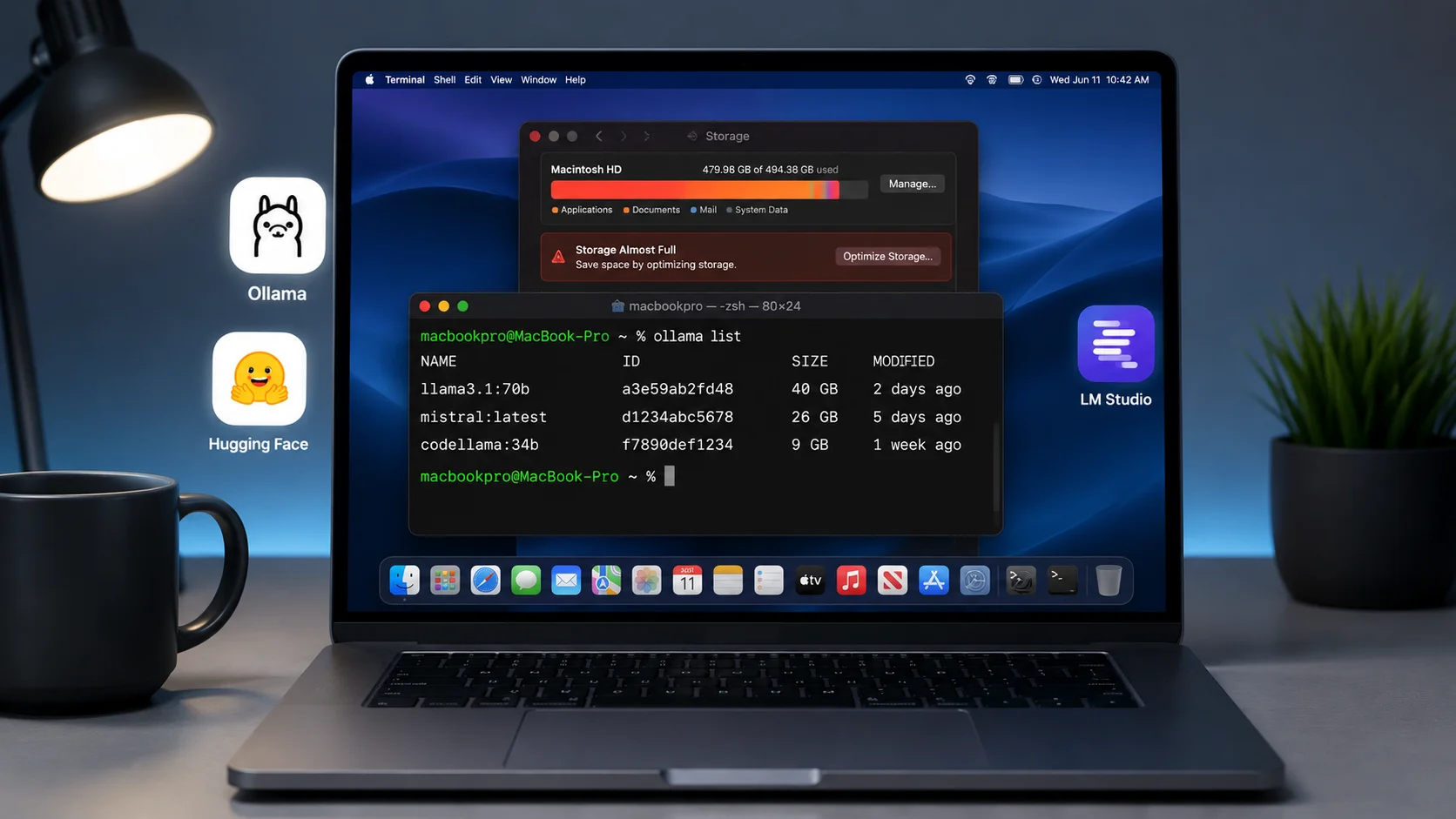
To clean up local AI models on Mac, open Terminal and run ollama list to see downloaded models, then ollama rm model-name to delete unused ones. For LM Studio, delete models from ~/.cache/lm-studio/models/. For Hugging Face, run huggingface-cli delete-cache. A single LLM can be 4-45GB, and users typically accumulate 50-100GB unknowingly. For a complete scan across all AI tool directories, use DeepCleanMac.
If you need to clean up local AI models on your Mac, you're not alone - and you're probably sitting on 50-100GB of hidden model files without knowing it. Local AI is exploding on Mac. According to Ollama's GitHub release metrics (github.com/ollama/ollama), the tool surpassed 10 million downloads in early 2026, making it the most popular local LLM runner on macOS. LM Studio has passed 5 million downloads according to its official website (lmstudio.ai). Apple Intelligence ships on every Mac running macOS Tahoe.
Here's the problem: a single large language model weighs 4-45GB. Llama 3.3 70B at Q4 quantization is 40GB. Mistral Large is 37GB. Even smaller models like Phi-4 are 9GB. Every time you run ollama pull or download a model in LM Studio, those files land on your disk and stay there permanently - even after you stop using them. As Simon Willison, prominent AI developer and creator of Datasette, noted: 'The hidden cost of local AI isn't compute - it's storage. Most people have no idea how much disk space their downloaded models are consuming.' There is no auto-cleanup. There is no expiry. They just accumulate.
According to Ollama's official FAQ documentation (docs.ollama.com/faq), model files are stored in ~/.ollama/models/ and are never automatically deleted. According to Hugging Face's cache management documentation (huggingface.co/docs/huggingface_hub/guides/manage-cache), their cache at ~/.cache/huggingface/hub/ can grow to 'hundreds of gigabytes' if not managed manually. And Apple Intelligence quietly downloads on-device models that most users don't know exist: roughly 7GB on macOS Tahoe, and up to 14GB by Apple's own figures on macOS 27 Golden Gate - with measured footprints of 20-30GB on some Macs.
This guide covers five methods to find and clean up every type of local AI model data on your Mac - from Ollama and LM Studio to Hugging Face, Apple Intelligence, and niche tools like GPT4All and Jan. Every method is tested on macOS Tahoe and works on all Apple Silicon Macs.
5 Methods to Clean Up Local AI Models on Mac
Method 1: Clean Up Ollama Models (The Biggest Storage Consumer)
Step 1: Open Terminal (Applications > Utilities > Terminal).
Step 2: List all downloaded Ollama models by running: ollama list - this shows every model, its size, and when it was last modified.
Step 3: Identify models you no longer use. Common space hogs: llama3.3:70b (40GB), codellama:70b (38GB), mixtral:8x7b (26GB), and any models you downloaded once to test and forgot about.
Step 4: Remove individual models by running: ollama rm model-name - for example, ollama rm llama3.3:70b - this deletes the model weights, manifest, and associated blobs.
Step 5: To see exactly how much disk space Ollama is using, run: du -sh ~/.ollama/models/ - this shows the total size of all stored models.
Step 6: To remove ALL Ollama models at once, run: rm -rf ~/.ollama/models/manifests/ && rm -rf ~/.ollama/models/blobs/ - then restart Ollama. Only the models you explicitly pull again will be re-downloaded.
Ollama stores model files in ~/.ollama/models/ as binary blobs. According to Ollama's official documentation (github.com/ollama/ollama), each model consists of a manifest file that references one or more blob files containing the actual weights, tokenizer, and configuration. When you pull a model variant (like llama3.3:70b-instruct-q4_K_M), Ollama downloads the full weights even if you already have the base model - there is no deduplication between variants. This means pulling three variants of Llama 3.3 can consume 120GB. The ollama rm command is the safest way to remove models because it properly cleans up both the manifest and all referenced blobs. Deleting blob files manually can leave orphaned manifests that confuse Ollama. After cleanup, run ollama list to verify removal. If Ollama is running as a background service, it automatically detects the changes - no restart required.
Method 2: Remove LM Studio Models and Cache
Step 1: Open LM Studio and go to the 'My Models' tab in the left sidebar to see all downloaded models with their sizes.
Step 2: For each model you want to remove, click the three-dot menu (⋯) next to the model name and select 'Delete.' This removes the model weights from disk.
Step 3: To find LM Studio's storage location manually, open Terminal and run: du -sh ~/.cache/lm-studio/ - this shows the total storage used.
Step 4: Check for orphaned model files that LM Studio's UI might miss: run ls -la ~/.cache/lm-studio/models/ - you'll see folders for each model publisher (lmstudio-community, TheBloke, bartowski, etc.).
Step 5: Delete orphaned model folders directly: rm -rf ~/.cache/lm-studio/models/publisher-name/model-name/ - replace with the actual folder path.
Step 6: Clear LM Studio's inference cache (temporary files from past conversations): rm -rf ~/.cache/lm-studio/tmp/ - this cache can grow to several gigabytes over time.
LM Studio stores downloaded models in ~/.cache/lm-studio/models/ organized by publisher and model name. Each model file is a single GGUF (GPT-Generated Unified Format) file - a self-contained binary that includes weights, tokenizer, and metadata. GGUF files range from 3GB (7B parameter models at Q4 quantization) to 45GB (70B+ parameter models). Unlike Ollama, LM Studio downloads one file per model variant, making it easier to identify and delete specific files. However, LM Studio's built-in delete function occasionally leaves behind empty directories and partial downloads from interrupted transfers. The manual cleanup steps above catch these orphaned files. LM Studio also maintains a tmp/ directory for conversation context and inference artifacts that persists between sessions - this is safe to delete entirely as it only contains ephemeral data. After cleanup, restart LM Studio to refresh its model index.
Method 3: Manage Apple Intelligence On-Device Models
Step 1: Open System Settings from the Apple menu ().
Step 2: Click 'Apple Intelligence & Siri' in the left sidebar.
Step 3: Review what Apple Intelligence features are enabled. Each feature downloads its own on-device model: Writing Tools, Image Playground, Genmoji, Smart Reply, notification summaries, and Visual Intelligence.
Step 4: Toggle off individual features you don't use under the Apple Intelligence section. This stops their background work, but do not count on it to free storage - macOS does not document removing model data when individual features are switched off.
Step 5: To check how much storage Apple Intelligence is using, go to System Settings > General > Storage and look for the 'Apple Intelligence' or 'System Data' category - Apple Intelligence models are counted within System Data.
Step 6: On macOS Tahoe, you can remove all Apple Intelligence data by toggling off 'Apple Intelligence' entirely at the top of the Apple Intelligence & Siri settings. macOS will remove the on-device models over the next few days, and re-enabling later triggers a fresh download.
Step 7: On macOS 27 Golden Gate, that master toggle no longer exists. The models download automatically and there is no supported way to remove them - see our Apple Intelligence storage guide for macOS 27 for what you can do instead.
According to Apple's developer documentation (developer.apple.com), Apple Intelligence requires approximately 7GB of storage for its core on-device models on Apple Silicon Macs with 8GB+ of unified memory. These models power Writing Tools (text rewriting, proofreading, summarization), Image Playground and Genmoji (on-device image generation), Smart Reply and notification summaries, and Visual Intelligence (image understanding). The models are downloaded automatically when Apple Intelligence is enabled and are stored in a protected system partition that standard file browsers cannot access. Apple manages this storage through an internal process called intelligenceplatformd, which coordinates model downloads and updates. Unlike Ollama or LM Studio, you cannot manually delete individual Apple Intelligence model files - you can only control which features are enabled, and macOS handles the rest. On macOS Tahoe, disabling Apple Intelligence entirely is the only way to reclaim the full 7GB+, which is worth considering if you don't use Apple's AI features and prefer third-party tools like Ollama or ChatGPT. macOS 27 Golden Gate changed this: Apple removed the master switch, the models download regardless of your settings, and Apple now lists up to 14GB on M3-or-later Macs with 12GB or more of memory and up to 8GB on other supported Macs. Measured usage on Golden Gate runs higher still, from about 14GB to over 30GB.
Method 4: Clean Up Hugging Face Hub Cache
Step 1: Open Terminal and check how much space Hugging Face is using: run du -sh ~/.cache/huggingface/ - many developers are shocked to find 20-100GB here.
Step 2: If you have the huggingface-cli installed, run: huggingface-cli scan-cache - this shows a detailed table of every cached model and dataset with sizes, last access dates, and the number of revisions stored.
Step 3: Run the interactive cleanup: huggingface-cli delete-cache - this lets you select specific models and revisions to delete while keeping the ones you need.
Step 4: To manually delete specific models, navigate to ~/.cache/huggingface/hub/ and look for folders starting with 'models--' - each folder is a cached model. Delete the ones you no longer need: rm -rf ~/.cache/huggingface/hub/models--organization--model-name/.
Step 5: Clear cached datasets too: ls -la ~/.cache/huggingface/hub/datasets--*/ - dataset caches can be just as large as model caches, especially for training datasets.
Step 6: Delete the Hugging Face download cache: rm -rf ~/.cache/huggingface/hub/.cache/ - this contains temporary download fragments from interrupted transfers that never got cleaned up.
According to Hugging Face's official documentation (huggingface.co/docs/huggingface_hub/guides/manage-cache), the Hub cache at ~/.cache/huggingface/hub/ uses a symlink-based structure where each model revision is stored as a complete snapshot. This means that if a model has been updated three times and you've accessed each version, you have three complete copies of the weights on disk. The scan-cache command shows the 'last accessed' date for each entry, which helps you identify models you downloaded months ago and never used again. Hugging Face explicitly states that this cache can grow to 'hundreds of gigabytes' if not managed. The delete-cache command is the safest cleanup method because it resolves symlinks correctly and avoids breaking references between snapshots and blobs. Manual deletion works but may leave orphaned blob files if symlinks pointed to shared weight files across revisions. After cleanup, any model you access again through the transformers library or the Hub will be re-downloaded automatically - nothing is permanently lost, only disk space is reclaimed.
Method 5: Find and Remove Other AI Tool Data (GPT4All, Jan, ComfyUI, and More)
Step 1: Check for GPT4All models: run du -sh ~/Library/Application\ Support/nomic.ai/GPT4All/ - GPT4All stores downloaded models here, typically 4-15GB each.
Step 2: Check for Jan AI models: run du -sh ~/jan/models/ - Jan downloads models to a jan/ folder in your home directory. Remove unused models: rm -rf ~/jan/models/model-name/.
Step 3: Check for Stable Diffusion data (AUTOMATIC1111/ComfyUI): run du -sh ~/stable-diffusion-webui/models/ or du -sh ~/ComfyUI/models/ - image generation models (checkpoints, LoRAs, VAEs) can consume 2-15GB each and accumulate rapidly.
Step 4: Check for Python ML caches: run du -sh ~/Library/Caches/torch/ and du -sh ~/.cache/torch/ - PyTorch caches pre-trained model weights here. Also check ~/.cache/clip/ for CLIP model caches.
Step 5: Do a broad search for large AI-related files: run find ~ -name '*.gguf' -o -name '*.safetensors' -o -name '*.bin' -o -name '*.pt' -o -name '*.ckpt' 2>/dev/null | head -20 - this finds common AI model file formats anywhere on your Mac.
Step 6: Check Docker for AI containers and images if you run AI tools via Docker: run docker system df - then docker image prune -a to remove unused AI container images.
The local AI ecosystem on Mac has fragmented into dozens of tools, each with its own storage location and model format. GPT4All stores models in ~/Library/Application Support/nomic.ai/GPT4All/ as GGUF files. Jan AI uses ~/jan/models/ with its own folder structure. Stable Diffusion tools (AUTOMATIC1111's webui, ComfyUI, Forge) store checkpoints in their respective models/ directories - a single Stable Diffusion XL checkpoint is 6.5GB, and users commonly accumulate 10-20 models. PyTorch caches pre-trained weights from torchvision and other libraries in both ~/Library/Caches/torch/ and ~/.cache/torch/. The find command in Step 5 is the most powerful discovery method - it searches for common model file extensions (.gguf for quantized LLMs, .safetensors for diffusion models, .bin/.pt/.ckpt for PyTorch models) regardless of which tool downloaded them. This catches models in unexpected locations like project directories, Jupyter notebook folders, and git clones of AI repositories that include bundled weights.
Where Local AI Models Hide on Your Mac
Local AI tools scatter model files across your Mac's file system. Here's exactly where each tool stores its data and how much space it typically consumes:
| AI Tool / Location | Storage Details |
|---|---|
| Ollama (~/.ollama/models/) | The most popular local LLM runner. Stores models as binary blobs with separate manifest files. Individual models range from 4GB (7B parameter) to 45GB (70B+ parameter). No auto-cleanup - models stay until explicitly removed with ollama rm. Average user accumulates 30-80GB over a few months of experimentation. |
| LM Studio (~/.cache/lm-studio/) | Stores GGUF model files organized by publisher. Each model is a single self-contained file. Also maintains a tmp/ directory for inference cache that grows over time. Typical storage: 20-60GB for users who test multiple model families. |
| Apple Intelligence (System partition) | Downloads approximately 7GB of on-device models for Writing Tools, Image Playground, Genmoji, and notification summaries. Stored in a protected system partition that standard tools cannot access. Counted under 'System Data' in macOS storage settings. On macOS Tahoe, only removable by disabling Apple Intelligence entirely. On macOS 27 Golden Gate the footprint grows to roughly 14-30GB and there is no supported way to remove it. |
| Hugging Face (~/.cache/huggingface/hub/) | Caches every model and dataset you access through the transformers library, diffusers, or direct downloads. Stores multiple revisions per model using a symlink-based snapshot system. Can grow to hundreds of gigabytes according to Hugging Face's own documentation. Most developers never clean this cache. |
| PyTorch Cache (~/.cache/torch/) | Caches pre-trained model weights from torchvision, torchaudio, and third-party libraries. Also stores downloaded checkpoint files. Typically 2-10GB for general ML work, but can be much larger for vision or audio model development. |
| Other Tools (GPT4All, Jan, ComfyUI) | GPT4All stores in ~/Library/Application Support/nomic.ai/GPT4All/. Jan AI uses ~/jan/models/. Stable Diffusion tools store checkpoints, LoRAs, and VAEs in their own models/ directories - a single SDXL checkpoint is 6.5GB. Combined, these niche tools can consume 20-50GB. |
Why Local AI Models Consume So Much Storage
The local AI revolution on Mac is creating a storage crisis that most users don't see coming - and the numbers explain why.
A large language model is, at its core, a massive file of numerical weights. According to Meta AI's model documentation (llama.meta.com), Llama 3.3 70B in its full-precision form is 140GB. Even after quantization - compressing the weights from 16-bit to 4-bit precision - it's still 40GB. Smaller 7B-parameter models land around 4-5GB at Q4 quantization. Mid-range models like Llama 3.1 8B, Mistral 7B, and Phi-4 14B sit in the 5-9GB range. These sizes are per model, per variant. Pull a model in Q4 and Q8? That's two complete copies on disk.
The behavior pattern makes it worse. When users first discover Ollama or LM Studio, they typically download 5-10 models to experiment with different capabilities - a coding model, a creative writing model, a reasoning model, a small fast model, a large accurate model. According to community surveys on Reddit's r/LocalLLaMA (reddit.com/r/LocalLLaMA), the median active Ollama user has 6-8 models downloaded at any time, consuming 30-60GB. Power users with 15+ models routinely exceed 100GB. As Andrej Karpathy, former Director of AI at Tesla, observed about the local LLM trend: 'The most surprising thing about running models locally is how quickly disk space becomes the bottleneck, not compute.'
Image generation adds another layer. According to Stability AI's model releases, a single Stable Diffusion XL checkpoint is 6.5GB. Flux models from Black Forest Labs range from 12-23GB. Users who work with ComfyUI or AUTOMATIC1111 often accumulate 10-20 checkpoints plus dozens of LoRA files (100MB-2GB each) and VAE files (300-800MB each). A moderately active image generation setup can consume 50-100GB on its own.
Then there's the cache problem. Hugging Face's Python library caches every model you ever load through the transformers or diffusers libraries - including models you loaded once in a Jupyter notebook six months ago. It also stores multiple revisions of the same model if the model was updated after your initial download. According to Hugging Face's official cache management guide (huggingface.co/docs/huggingface_hub/guides/manage-cache), this cache was designed for fast repeated access but 'can grow to hundreds of gigabytes' without management.
The fundamental issue is that no local AI tool auto-cleans. Ollama keeps every model you've ever pulled. LM Studio keeps every download. Hugging Face keeps every revision of every model. Unlike browser caches or system caches that macOS can purge under storage pressure, AI model files are stored in user-space directories that macOS will never touch. They persist until you manually find and remove them - and most users don't know where to look.
Tips for Managing AI Model Storage Long-Term
1. Audit your models monthly
Set a monthly reminder to run ollama list and du -sh ~/.cache/lm-studio/ ~/.cache/huggingface/. Most users find that 60-70% of their downloaded models haven't been used in the past month. Removing stale models is the single fastest way to reclaim storage - a single unused 70B model is 40GB of dead weight. The AI model landscape moves fast enough that models you downloaded three months ago may already be superseded by better alternatives.
2. Use smaller quantizations when possible
For most conversational and coding tasks, Q4_K_M quantization provides nearly identical quality to Q8 at half the file size. A Q4 version of Llama 3.3 70B is 40GB versus 70GB for Q8. Unless you're doing precision-sensitive work like structured data extraction or math reasoning, the quality difference is negligible. Before downloading a large model, check if a smaller quantization meets your needs - the storage savings compound quickly across multiple models.
3. Avoid downloading multiple variants of the same model
Ollama and LM Studio don't deduplicate between model variants. Pulling llama3.3:70b, llama3.3:70b-instruct, and llama3.3:70b-instruct-q4_K_M gives you three separate 30-40GB downloads - potentially 120GB for essentially the same model. Pick one variant (usually the instruct version at Q4_K_M) and delete the rest. The same applies to Hugging Face: if you've loaded a model through both the transformers AutoModel API and a direct download, you may have duplicate copies in your cache.
4. Set environment variables to control cache locations
If you have an external drive, redirect AI caches there to keep your main SSD free. Set OLLAMA_MODELS=/Volumes/External/ollama-models in your shell profile to move Ollama's storage. Set HF_HOME=/Volumes/External/huggingface for Hugging Face. LM Studio allows changing its model directory in Settings > My Models > Models Directory. This is especially valuable on Macs with 256-512GB SSDs where local AI competes with macOS, apps, and documents for limited space.
5. Use ollama show before downloading large models
Before pulling a new model, run ollama show model-name to see its parameter count, quantization level, and estimated size without downloading it. This prevents the common pattern of downloading a 40GB model only to discover it's too slow on your hardware or doesn't suit your use case. Similarly, check model cards on Hugging Face for file sizes before running from_pretrained() - many model pages list the total download size.
6. Clean up after uninstalling AI tools
Dragging Ollama, LM Studio, or GPT4All to the Trash removes the application but leaves all downloaded models on disk. Ollama's ~/.ollama/ directory, LM Studio's ~/.cache/lm-studio/, and GPT4All's ~/Library/Application Support/nomic.ai/ must be deleted separately. This is one of the biggest sources of phantom storage consumption - users uninstall the app thinking they've reclaimed the space, but 30-80GB of model files remain in hidden directories. DeepCleanMac detects these orphaned AI data directories and flags them for safe removal.
How DeepCleanMac Helps Clean Up AI Model Storage
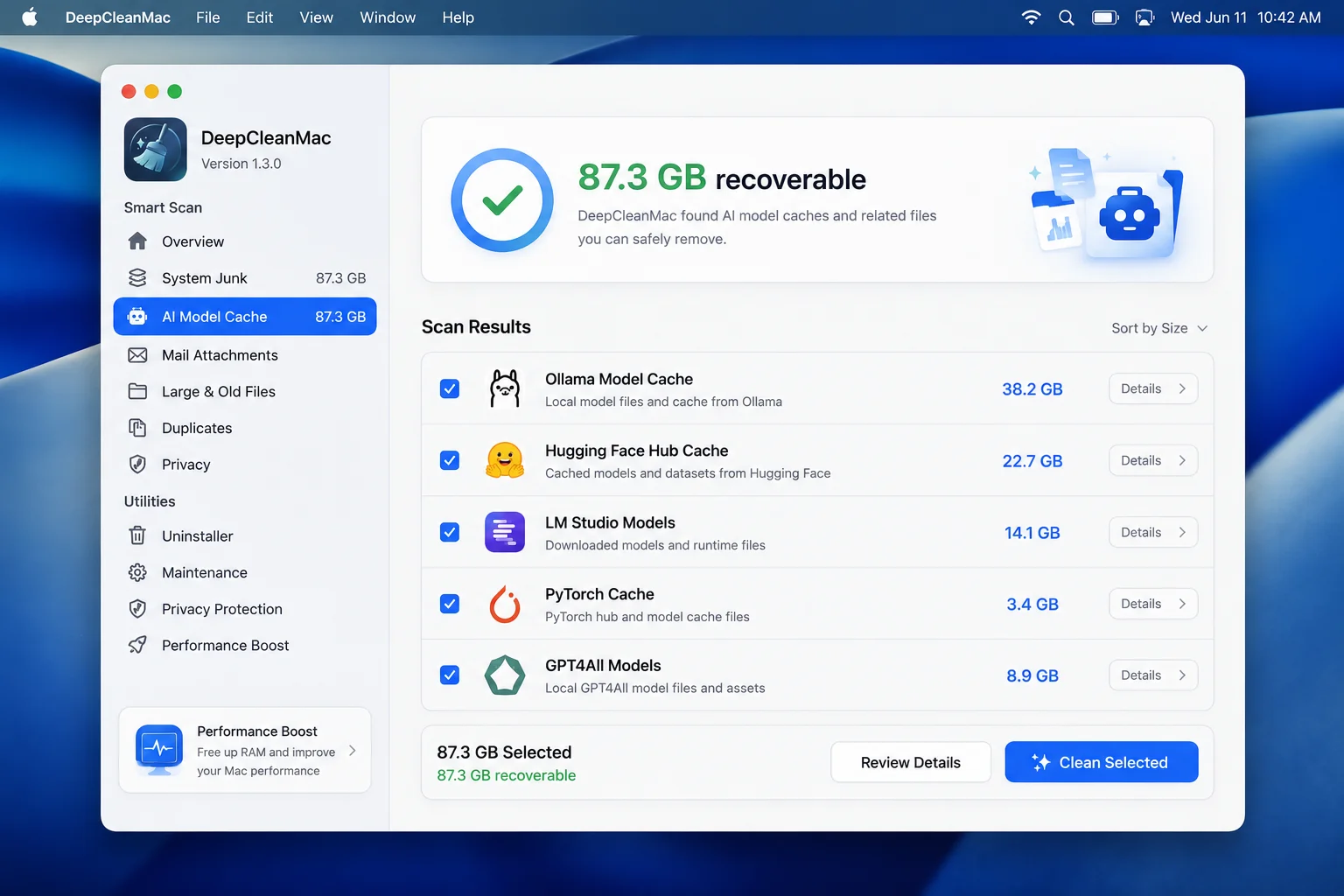
DeepCleanMac scans 200+ hidden system locations - including the directories where Ollama, LM Studio, Hugging Face, GPT4All, and other AI tools store their model files and caches. It identifies orphaned AI data from tools you've uninstalled (the app is gone but 30-80GB of model files remain), stale caches from Hugging Face and PyTorch that haven't been accessed in months, temporary inference data and partial downloads from interrupted model transfers, and associated cache files that accumulate alongside your model libraries.
What makes this particularly valuable for AI users is that model files are scattered across at least six different hidden directories - ~/.ollama, ~/.cache/lm-studio, ~/.cache/huggingface, ~/Library/Application Support/nomic.ai, ~/.cache/torch, and ~/jan - and according to Apple's macOS storage documentation (support.apple.com), macOS will never clean user-space data automatically. Unlike system caches that macOS can purge under storage pressure, user-space AI model data persists indefinitely.
DeepCleanMac finds all of it in a single 30-second scan, shows you exactly what's consuming space, and lets you clean it with one click. Most AI-active Mac users recover 15-40GB on their first scan - and that's on top of the model cleanup you do manually. Download DeepCleanMac free and see how much hidden AI data is on your Mac.
Frequently Asked Questions
How much storage do local AI models typically use on Mac?
▾
A single large language model can occupy anywhere from a few gigabytes to tens of gigabytes, depending on its parameter count and quantization. A 7B-parameter model at Q4 quantization is about 4-5GB, while a 70B model at Q4 is around 40GB. According to community surveys on Reddit's r/LocalLLaMA (reddit.com/r/LocalLLaMA), the median active Ollama user has 6-8 models downloaded, consuming 30-60GB. Users who also run image generation tools (Stable Diffusion checkpoints at 6.5GB each, Flux models at 12-23GB) can easily exceed 100GB of AI-related storage across all tools combined.
Is it safe to delete AI model files from my Mac?
▾
Yes, deleting AI model files is completely safe. According to Ollama's official FAQ (docs.ollama.com/faq), model files are downloaded copies of publicly available weights - they contain no personal data, settings, or chat history. You can re-download any model at any time by running ollama pull model-name or downloading it again in LM Studio or Hugging Face. Your conversation history, custom system prompts, and Modelfiles are stored separately and are not affected by model deletion. According to Hugging Face documentation, deleting cached models simply triggers a fresh download on next access - nothing is permanently lost.
Where does Ollama store models on Mac?
▾
According to Ollama's official documentation (github.com/ollama/ollama), models are stored in ~/.ollama/models/ on macOS. This directory contains two subdirectories: manifests/ (JSON files describing each model) and blobs/ (the actual weight files as SHA256-named binaries). The total size depends on how many models you've pulled - run du -sh ~/.ollama/models/ in Terminal to check. This location can be changed by setting the OLLAMA_MODELS environment variable.
Does uninstalling Ollama or LM Studio delete the downloaded models?
▾
No. Dragging Ollama or LM Studio to the Trash only removes the application binary. All downloaded model files remain on disk in their respective directories: ~/.ollama/models/ for Ollama and ~/.cache/lm-studio/models/ for LM Studio. You must manually delete these directories to reclaim the storage. This is one of the most common reasons Mac users have 30-80GB of 'phantom' storage consumption - the app is gone but the data persists in hidden locations.
How do I check how much space Hugging Face cache is using?
▾
Run du -sh ~/.cache/huggingface/ in Terminal to see the total size. For a detailed breakdown by model, install the Hugging Face CLI (pip install huggingface-cli) and run huggingface-cli scan-cache - this shows every cached model and dataset with individual sizes, last access dates, and the number of stored revisions. According to Hugging Face documentation, this cache can grow to 'hundreds of gigabytes' if not managed, because it stores every revision of every model you've ever accessed.
Can I move AI models to an external drive instead of deleting them?
▾
Yes. You can redirect Ollama's storage by setting OLLAMA_MODELS=/Volumes/YourDrive/ollama-models in your ~/.zshrc or ~/.bash_profile, then restarting Ollama. For Hugging Face, set HF_HOME=/Volumes/YourDrive/huggingface. LM Studio allows changing its model directory in Settings > My Models. Note that running models from an external HDD will be significantly slower than an internal SSD - inference speed depends heavily on sequential read performance. External SSDs (USB-C/Thunderbolt) work well as a compromise.
Does Apple Intelligence count toward my Mac's storage?
▾
Yes. According to Apple's developer documentation, Apple Intelligence downloads approximately 7GB of on-device models to your Mac when enabled. These models are stored in a protected system partition and counted under 'System Data' in macOS storage settings. You cannot delete individual Apple Intelligence model files. On macOS Tahoe, the only way to reclaim this storage is to disable Apple Intelligence entirely in System Settings > Apple Intelligence & Siri. On macOS 27 Golden Gate that option is gone: the models download automatically, Apple lists up to 14GB on M3-or-later Macs with 12GB or more of memory, measured footprints reach 20-30GB, and switching individual features off does not free the space.
Local AI is one of the most exciting things happening on Mac - but it comes with a storage cost that sneaks up on you. A few months of experimenting with Ollama, LM Studio, and Hugging Face can quietly consume 50-100GB of your SSD with model files that never auto-clean. The five methods in this guide give you complete control over every source of AI model storage on your Mac - from the ollama rm command that removes individual models to the broad file search that catches model files in unexpected locations. The key habit to build: audit your models monthly and remove the ones you're not actively using. AI models are free to re-download whenever you need them - there's no reason to keep 40GB of weights sitting idle on your disk. For the hidden AI caches, orphaned data from uninstalled tools, and scattered model files that manual cleanup misses, DeepCleanMac scans everything in 30 seconds and shows you exactly what's safe to remove. Download DeepCleanMac free and reclaim the storage your local AI experiments have been quietly consuming.
Free download. Scans 200+ hidden locations in seconds.