
Xcode, Docker, and Dev Caches: Where 100GB of Your Mac Went
Quick Answer
Xcode Derived Data is almost always the largest single item and it is always safe to delete: rm -rf ~/Library/Developer/Xcode/DerivedData/* costs you one slow rebuild and commonly returns 10-40GB. Next, remove simulator runtimes you no longer test against with xcrun simctl runtime delete, at roughly 5-8GB each, and clear orphaned devices with xcrun simctl delete unavailable. Docker needs two steps rather than one, because Docker.raw never shrinks by itself: run docker system prune -a, then docker run --privileged --pid=host docker/desktop-reclaim-space to hand the space back to macOS. Package manager caches across npm, Yarn, pnpm, Homebrew, Cargo, Go, pip and Gradle usually total 10-20GB and all re-download on demand. Measure first with du -sh so you know which of these actually applies to you, and do not delete Xcode Archives for builds you have shipped, because those hold the dSYMs you need to symbolicate crash reports.
Your disk fills faster than everyone else's and you already know why. You have a dozen tools installed, each one keeps its own cache, none of them coordinate, and not one of them is watching the total.
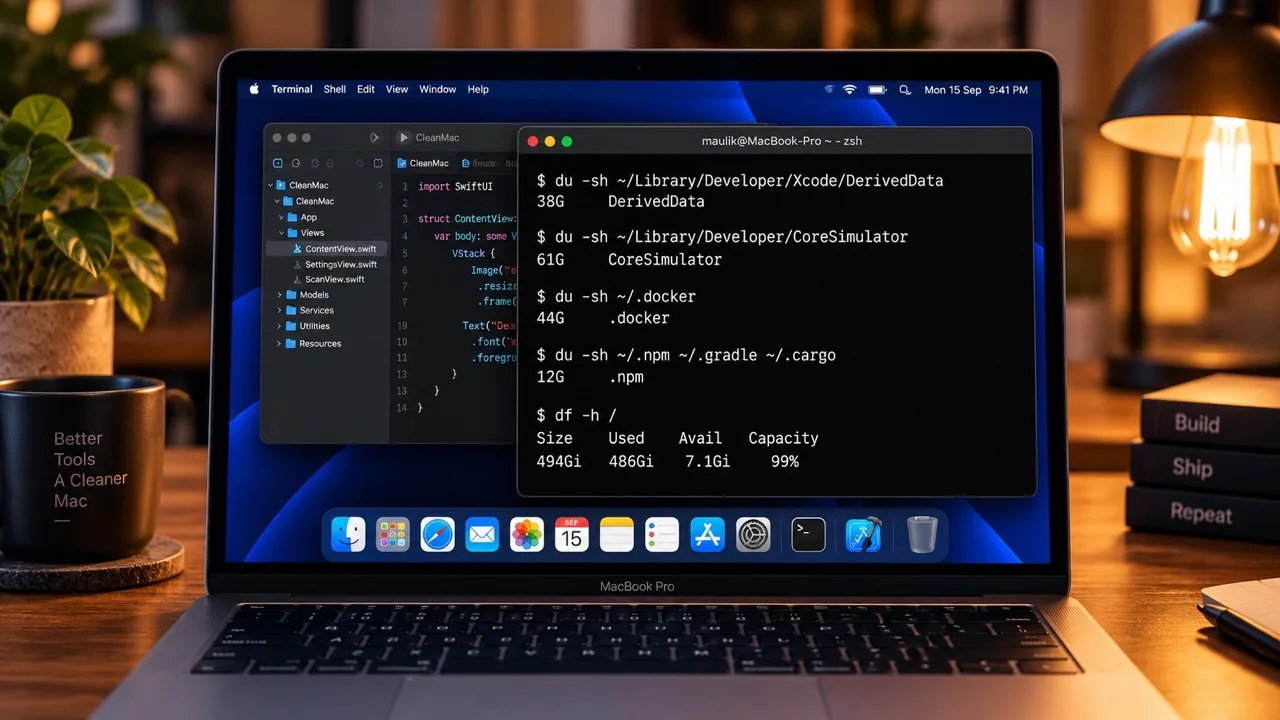
The numbers get large quickly. A Mac used for iOS development for a year or two commonly carries 20-50GB in Xcode alone, and guides published this year put it at 50-150GB after a few years of active work. One developer documented 98GB in CoreSimulator, 107GB in AssetsV2 and 125GB spread across 19 installed simulator runtimes on a single machine. On the JavaScript side, another described a 256GB MacBook down to 8GB free, with roughly 10GB in package manager caches and 40GB total in build artifacts.
None of this is a malfunction. Every one of those directories is doing its job: caching a compile so the next build is faster, keeping a runtime so you can still test on an older iOS, storing a tarball so npm install does not hit the network. They are all optimised for speed, none of them are optimised for disk, and the cleanup step is left entirely to you.
This guide covers where the space goes, the exact commands to get it back, what returns automatically versus what is gone until you re-download it, and the four things developers delete that they should not. The figures throughout are typical ranges rather than promises. What you actually recover depends on how long the machine has been in service and how many toolchains are on it.
5 Steps to Reclaim Developer Disk Space on Mac
Method 1: Measure Before You Delete Anything
Step 1: Open Terminal from Applications > Utilities.
Step 2: Check real free space first: df -h /
Step 3: Size up Xcode in one command: du -sh ~/Library/Developer/Xcode/* ~/Library/Developer/CoreSimulator 2>/dev/null | sort -hr
Step 4: Size up the package manager caches: du -sh ~/.npm ~/.yarn ~/Library/pnpm ~/.bun ~/.cargo ~/go ~/.gradle ~/.m2 ~/Library/Caches/Homebrew ~/Library/Caches/CocoaPods 2>/dev/null | sort -hr
Step 5: Check what Docker is holding: docker system df
Step 6: Find your largest node_modules folders: find ~ -name node_modules -type d -prune -exec du -sh {} + 2>/dev/null | sort -hr | head -20
Step 7: Write the totals down. You need a baseline to tell what each step below actually recovered.
Sorting by size first is worth the two minutes, because the distribution is rarely what people expect. Developers reach for node_modules because it is the folder they see every day, but on a Mac that also builds iOS apps, DerivedData and CoreSimulator are usually several times larger and nobody has ever opened them in Finder. Note the -prune in the find command: without it, find walks into every nested node_modules inside every node_modules and takes a long time to produce numbers you cannot read. One more thing to expect in step 5 - du and ls disagree about Docker's disk image, and du is the one telling the truth. Method 4 covers why.
Method 2: Clear Xcode Derived Data, Device Support, and Caches
Step 1: Quit Xcode. Deleting Derived Data while it runs can leave a half-written index behind.
Step 2: Delete the build cache: rm -rf ~/Library/Developer/Xcode/DerivedData/*
Step 3: Check which iOS versions Xcode is holding support files for: du -sh ~/Library/Developer/Xcode/iOS*DeviceSupport/*
Step 4: Delete the version folders you no longer need. Each is roughly 3-8GB.
Step 5: Clear device logs: rm -rf ~/Library/Developer/Xcode/iOS*Device*Logs/*
Step 6: Review archives before touching them: open ~/Library/Developer/Xcode/Archives
Step 7: Keep any archive matching a build you shipped, and delete the rest. Step 8 of this guide explains why that distinction matters.
Step 8: Clear the documentation cache: rm -rf ~/Library/Developer/Xcode/DocumentationCache/*
Step 9: Empty Xcode's own cache: rm -rf ~/Library/Caches/com.apple.dt.Xcode/*
Step 10: Re-run df -h / and compare against the baseline from method 1.
Derived Data is the safest large deletion on a developer Mac. It holds compiled modules, build logs, source indexes and code coverage data, all of it reproducible from your source, and Xcode rebuilds whatever it needs on the next build. The cost is real but one-off: the first build after deleting is slow while indexes and intermediates regenerate, then builds return to normal speed. Archives are the opposite and deserve care. An xcarchive contains the dSYM files for that exact build, and without the dSYM you cannot symbolicate a crash report from a version already in users' hands - you get memory addresses instead of function names. Keep archives for anything shipped to TestFlight or the App Store, or export the dSYMs elsewhere first, then delete the rest freely. Device Support is a different trade-off again: each iOS version folder gets re-downloaded automatically the next time you attach a device running that version, so deleting old ones is safe but costs you a wait if that device comes back.
Method 3: Delete Simulator Runtimes You No Longer Test Against
Step 1: List what is installed: xcrun simctl runtime list
Step 2: Check sizes visually in Xcode > Settings > Platforms, which shows every installed runtime with its size.
Step 3: Delete runtimes untouched for six months: xcrun simctl runtime delete --notUsedSinceDays 180
Step 4: To remove one specific runtime, pass its identifier: xcrun simctl runtime delete followed by the identifier from step 1.
Step 5: Remove simulators orphaned by Xcode upgrades: xcrun simctl delete unavailable
Step 6: Wipe the contents of simulators you want to keep but do not need data in: xcrun simctl erase all
Step 7: Clear the shared simulator caches: rm -rf ~/Library/Developer/CoreSimulator/Caches/*
Step 8: Re-measure: du -sh ~/Library/Developer/CoreSimulator
This is the second largest win on an iOS machine and the one most often missed, because nothing in Xcode's interface nags you about it. Runtimes are 5-8GB each and they accumulate quietly: an Xcode upgrade can pull a new one down while the old one stays. The developer who found 125GB across 19 runtimes had not done anything unusual, they had simply been shipping iOS apps for several years. Two cautions. Delete a runtime only if you genuinely no longer test that OS version, because getting it back is a multi-gigabyte download rather than a rebuild. And use simctl rather than deleting folders under CoreSimulator/Devices by hand. CoreSimulator maintains its own index, and removing a device directory behind its back leaves a phantom device that Xcode keeps listing and that you then cannot remove cleanly.
Method 4: Make Docker Actually Return the Space
Step 1: See what Docker is holding, broken down: docker system df -v
Step 2: Remove stopped containers, unused networks, dangling images and build cache: docker system prune
Step 3: For a deeper clean that also removes all unused images: docker system prune -a
Step 4: Check the real size of the disk image: du -sh ~/Library/Containers/com.docker.docker/Data/vms/0/data/Docker.raw
Step 5: Force the space back to macOS: docker run --privileged --pid=host docker/desktop-reclaim-space
Step 6: Cap future growth in Docker Desktop > Settings > Resources > Advanced by lowering the Virtual Disk Limit from its 64GB default.
Step 7: Re-run df -h / to confirm the space actually reached the host.
Docker is the step where people conclude that cleaning does not work, and they are half right. Docker Desktop runs Linux in a VM and stores everything in a single Docker.raw file that grows toward the virtual disk limit and never shrinks on its own. Pruning frees space inside the VM; it does not hand it back to macOS. That is what the reclaim-space container in step 5 is for, and on a Docker.raw file the space shows up on the host within a few seconds. Two things to know before you read the numbers. Docker.raw is a sparse file, so ls -lh reports the maximum size while du reports actual usage - a 60G figure from ls can be 31G on disk. And prune leaves volumes alone unless you add --volumes, which is deliberate, because named volumes are where your local database data lives and Docker will not warn you before removing them. If the file still refuses to shrink, Docker Desktop 4.28 and later improved automatic TRIM under the Apple Virtualization framework, so updating Docker is worth trying before anything drastic.
Method 5: Clear Package Caches and the node_modules Graveyard
Step 1: Clear the JavaScript caches: npm cache clean --force, then yarn cache clean, then pnpm store prune
Step 2: Clear Bun and Deno if you use them: rm -rf ~/.bun/install/cache ~/Library/Caches/deno
Step 3: Clear Go and Rust: go clean -modcache and rm -rf ~/.cargo/registry/cache
Step 4: Clear Python: rm -rf ~/.cache/pip ~/.cache/uv
Step 5: Clear Gradle: rm -rf ~/.gradle/caches
Step 6: Clear the Apple package managers: rm -rf ~/Library/Caches/CocoaPods ~/Library/Caches/org.swift.swiftpm
Step 7: Clean up Homebrew's downloads: brew cleanup --prune=all
Step 8: Sweep node_modules from shelved projects interactively: npx npkill
Step 9: Empty the Trash, then re-measure with df -h /
Every cache in this list is by definition reproducible - that is what makes it a cache. The worst case for any of them is a slower next install while the files come back down. For npm specifically, use npm cache clean --force rather than deleting ~/.npm by hand, because npm maintains a checksum index inside that folder and removing the directory out from under it can leave npm confused about what it has. Maven's ~/.m2/repository is the one I would leave alone unless you are desperate: it is technically re-downloadable, but it is a local artifact repository rather than a cache, and refilling it on a corporate network can take a very long time. The node_modules sweep in step 8 is usually the most satisfying and the least automatable. A single React or Next.js project holds 200-500MB, and the cost is not your active projects, it is the eleven you finished last year that still carry full dependency trees. You have the lockfile. Delete the folder when you shelve a project and npm install brings it back exactly.
Where Developer Disk Space Actually Goes
These are the directories that matter, with honest figures for what is typical and what you get back. Sizes vary enormously with how long a machine has been in service, so treat these as ranges to check yourself against rather than as what you should expect to recover.
| What Takes the Space | Typical Size and Whether You Get It Back |
|---|---|
| Xcode Derived Data | Commonly 10-40GB, fully recoverable. Build intermediates, module caches, indexes and coverage data for every project you have ever opened. Rebuilt automatically, and the only cost is one slow build. |
| Simulator runtimes and device support | 5-8GB per runtime, 3-8GB per iOS version of device support. Recoverable, but only by re-downloading. Extreme cases run past 100GB once several years of runtimes have piled up. |
| Docker.raw disk image | Grows toward the virtual disk limit, 64GB by default. Recoverable, but it takes a prune plus an explicit reclaim step. Pruning alone frees space inside the VM and not on your disk. |
| Package manager caches | Typically 10-20GB combined across npm, Yarn, pnpm, Homebrew, CocoaPods, Swift Package Manager, Cargo, Go, pip and Gradle. Fully recoverable, re-downloaded on demand. |
| node_modules and build output | 200-500MB per JavaScript project, plus target, build, dist and .next folders elsewhere. Recoverable from the lockfile. The cost sits in abandoned projects rather than active ones. |
| Xcode Archives, logs and editor caches | A few GB each and mostly recoverable, with one exception. Archives hold the dSYMs for shipped builds and should be kept, or exported, before you delete anything. |
The Four Things Not to Delete
Most of a developer Mac is safely disposable, which makes the exceptions worth naming explicitly. All four sit inside folders that people clear in bulk.
The first is Xcode Archives for shipped builds. The dSYM files inside an xcarchive are what turn a crash report into readable function names and line numbers. Delete the archive for a build that is live in the App Store and every crash report from that version becomes a list of memory addresses. Export the dSYMs to external storage or upload them to your crash reporting service, then the archive itself is disposable.
The second is Docker named volumes. The command docker system prune -a --volumes is copied out of blog posts constantly, and the --volumes flag will remove the volume holding your local Postgres data without asking first. Docker leaves volumes alone by default for exactly this reason. Add the flag only when you know what is in them.
The third is provisioning profiles in ~/Library/MobileDevice/Provisioning Profiles. Xcode manages these itself, and clearing them out in a general sweep of the Developer folder is a reliable way to spend an afternoon fixing code signing errors that you caused.
The fourth is Docker.raw itself. Deleting the file is suggested often enough that it looks routine, and it does work - Docker creates a fresh, small one on restart. But it is a factory reset. Every image, container and named volume goes with it. Treat it as the last option rather than the fast one.
One general note on expectations. Everything else here is genuinely safe, but safe does not mean free. Clearing Derived Data costs a slow build, clearing package caches costs download time, and deleting a simulator runtime costs several gigabytes of downloading if you need it back. Clean the things you are not using, not the things you are.
Habits That Keep a Developer Mac From Filling Up
Cap Docker's virtual disk limit now
The 64GB default is a ceiling that Docker will grow into. Most developers are comfortable at 32GB, and the limit is the one setting that prevents the problem rather than treating it. Note that you can only reduce it to slightly above what is currently in use, so prune first and then lower it.
Delete node_modules when you shelve a project, not when the disk is full
Catching this at 8GB is a two-minute cleanup. Catching it at 40GB is a panic in the middle of a build. You have the lockfile, so the folder is one install away, and there is no reason for a project you have not touched in three months to hold 300MB of dependencies.
Export dSYMs instead of hoarding archives
You need the dSYMs to symbolicate crash reports from shipped builds. You rarely need the rest of the xcarchive. Pull the dSYMs out to external storage or your crash reporting service at ship time, and archives stop being a folder you are afraid to touch.
Automate the boring half
A weekly docker system prune and a monthly docker system prune -a keep the disk image from ever getting interesting. An alias in ~/.zshrc such as alias dprune='docker system prune -a --filter until=48h -f' turns it into one word. The same applies to brew cleanup, which Homebrew can run for you on a schedule.
Clear Derived Data on a schedule, not on a hunch
Deleting Derived Data is also the standard fix for Xcode behaving strangely, which means many developers only ever do it when something is broken and come to associate it with trouble. It is routine maintenance. Once a month, or whenever you finish a project, costs one slow build and stops the folder from ever reaching 40GB.
Leave 15-20% of the drive free
Builds need scratch space, and the tools that need it most fail worst without it. Below roughly 10% free macOS warns you; well below that, compiles start failing in ways that look like code problems rather than disk problems. On a 512GB Mac that means keeping 75-100GB clear as a working floor.
How DeepCleanMac Helps With Developer Caches
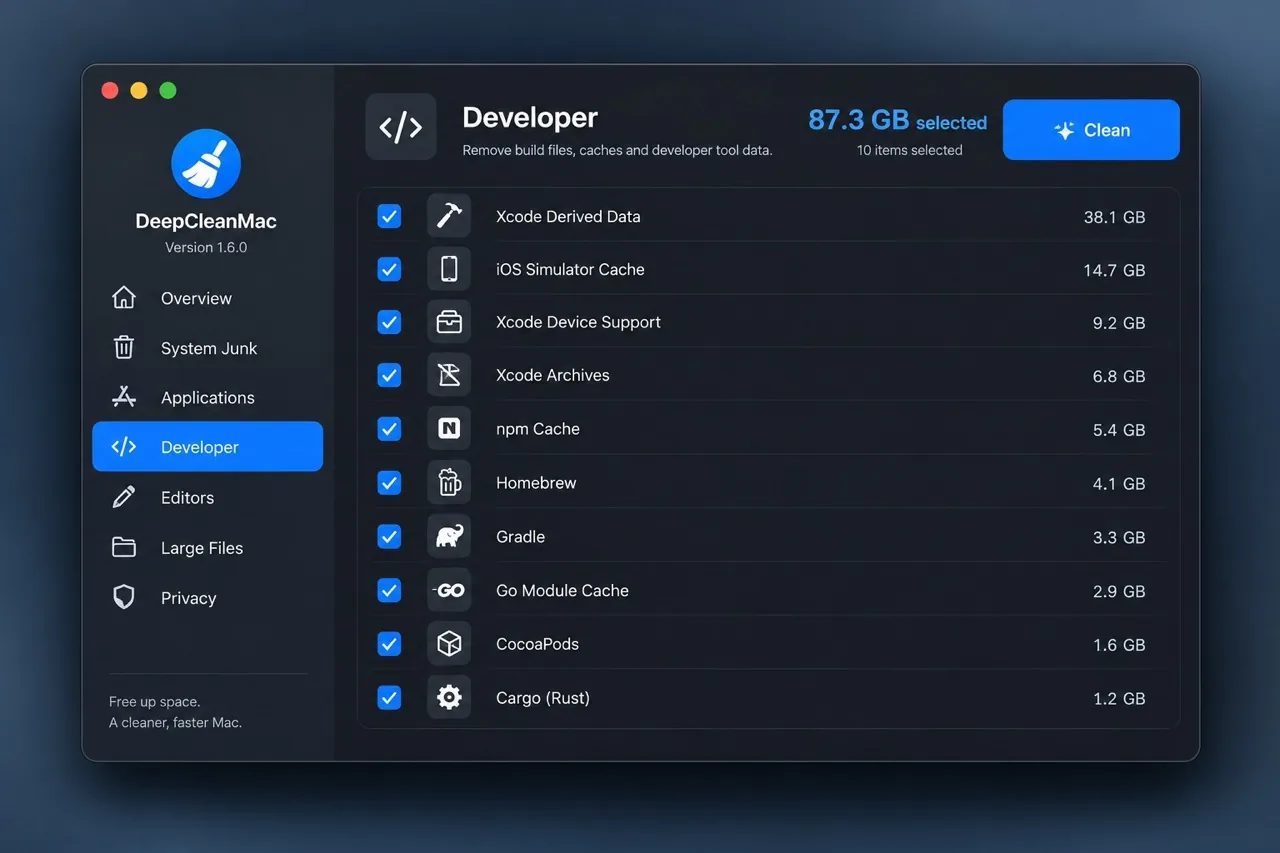
Everything above works, and the commands are worth knowing by heart. What does not scale is remembering all of it. The full list runs to roughly forty separate cache locations across the toolchains a working developer accumulates, and the ones that grow largest are usually the ones belonging to tools you stopped using a year ago.
DeepCleanMac's Developer section scans those locations in a single pass: Xcode Derived Data, Archives, Device Support, Device Logs, Documentation Cache, Build Products and the simulator caches, plus package manager caches for npm, Yarn, pnpm, Bun, Deno, CocoaPods, Swift Package Manager, Homebrew, Cargo, Go, pip, Conda, Gradle, Maven, Composer, Bundler, NuGet, Hex and others. It also finds simulators left unavailable by Xcode upgrades and removes them through simctl, so CoreSimulator's index stays consistent instead of leaving the phantom devices that manual folder deletion causes. Editor caches for VS Code, Cursor, Zed, Sublime Text, JetBrains and Copilot are covered in the same scan, and any target belonging to a running app is skipped automatically - Derived Data is left alone while Xcode is open.
Three limits are worth stating plainly, because they are exactly the parts of this article that no cleaner can do for you. DeepCleanMac clears Docker's build cache at ~/.docker/buildx/cache but does not touch Docker.raw, so the prune and reclaim-space steps in method 4 remain the way to shrink that file. It does not delete simulator runtimes either; xcrun simctl runtime delete in method 3 is the supported route, and that is deliberate given how easy it is to remove a runtime you still need. And it deliberately skips folders inside your working directories - node_modules, Pods, target, build, dist, .next and .build are all excluded, because a cleaner that deletes things inside your repositories is a cleaner you cannot trust. Method 5 and npkill cover that part.
The scan is free and shows the full list with sizes before you decide anything. A license is $5 a year or $9 for lifetime. Download DeepCleanMac and see what your toolchain has been holding onto.
Frequently Asked Questions
Is it safe to delete Xcode Derived Data?
▾
Yes. It holds build intermediates, module caches, indexes and coverage data, all of which Xcode regenerates from your source. The only cost is a slower next build while indexes rebuild, after which builds return to normal speed. Quit Xcode first so you are not deleting an index it is actively writing. Clearing Derived Data is also the standard first fix for Xcode misbehaving, so you will likely end up doing it for that reason anyway.
Why does my disk not free up after docker system prune?
▾
Because pruning frees space inside Docker's Linux VM, not on macOS. Docker Desktop keeps everything in a Docker.raw disk image that grows but never shrinks by itself. After pruning, run docker run --privileged --pid=host docker/desktop-reclaim-space to hand the space back to the host, which happens within a few seconds for a Docker.raw file. Also check the size with du rather than ls, because it is a sparse file and ls reports the maximum size rather than actual usage.
How much space can a developer expect to reclaim?
▾
On a machine used actively for a year or two, 20-50GB is typical, and 50-150GB is not unusual on an iOS machine carrying several years of simulator runtimes. The rough split is Derived Data at 10-40GB, simulator runtimes at 5-8GB each, Docker up to its 64GB default limit, package manager caches at 10-20GB combined, and node_modules at 200-500MB per project. Measure with du -sh first so you know which of these applies to you instead of working through all five steps blindly.
Can I delete Xcode Archives?
▾
Only the ones for builds you never shipped. An xcarchive contains the dSYM files for that exact build, and without them a crash report from a version in users' hands shows memory addresses instead of function names. Keep archives for anything sent to TestFlight or the App Store, or export the dSYMs to external storage or your crash reporting service first and then delete the archive.
Is npm cache clean --force safe?
▾
Yes. The cache holds compressed tarballs npm has already downloaded, and npm re-downloads whatever it needs on the next install. Use the command rather than deleting ~/.npm directly, because npm maintains a checksum index inside that folder. The same goes for yarn cache clean, pnpm store prune and brew cleanup --prune=all - all safe, and all costing nothing but download time.
Should I delete simulator runtimes?
▾
Delete the ones for OS versions you no longer test against. Each is 5-8GB, they accumulate with Xcode upgrades, and nothing prompts you to remove the old ones. Use xcrun simctl runtime delete --notUsedSinceDays 180 for a conservative sweep and xcrun simctl delete unavailable to clear simulators orphaned by upgrades. Be more deliberate here than with caches, because getting a runtime back is a multi-gigabyte download rather than a rebuild.
Why is node_modules so large, and can I delete it?
▾
A single React or Next.js project commonly holds 200-500MB because npm installs the full dependency tree, transitive dependencies included, per project rather than sharing between them. You can delete it from any project at any time, since the lockfile means npm install reproduces it exactly. Run npx npkill to sweep your home directory interactively. pnpm avoids most of the duplication by hard-linking from a shared store, which is worth considering if you juggle a lot of projects.
Developer disk bloat is not a malfunction, it is the cost of a dozen tools each caching aggressively with nobody watching the total, and that also makes it predictable. Measure first with du -sh so you know whether you have an Xcode problem, a Docker problem or a node_modules problem, because the fix differs for each and working through all five steps blindly wastes an afternoon. Derived Data is the safest large win and usually the biggest. Simulator runtimes are the one most often missed, at 5-8GB each. Docker needs the reclaim step or the space never actually reaches macOS. Package caches are free money, since every one of them comes back on demand. Keep the archives for shipped builds and Docker's named volumes, cap the virtual disk limit so the largest item on the list stops growing, and set a monthly reminder, because every directory here starts filling again the moment you go back to work.
Free download. Scans 200+ hidden locations in seconds.