
How to Uninstall Apps on Mac: Reclaim Your Disk Space
Quick Answer
To uninstall apps on Mac, drag the app from Applications to the Trash, or use Launchpad for App Store apps. But that only removes the visible .app file. To fully uninstall, you also need to delete leftover support files, caches, preferences, and login items from hidden ~/Library folders. For a complete removal without manual cleanup, use a dedicated uninstaller like DeepCleanMac that scans 200+ hidden system locations.
You delete an app, empty the Trash, and expect your Mac to feel lighter. Then you check storage and barely anything changed. That's the moment users realize app removal on macOS is more layered than it looks. If you're searching for how to uninstall apps on Mac, the short answer is easy - drag the app to the Trash, or remove it from Launchpad if it came from the App Store. The useful answer is more nuanced. According to Apple Developer documentation, macOS apps can store data in up to 8 separate Library subdirectories — Application Support, Caches, Preferences, Logs, Saved Application State, Containers, LaunchAgents, and Group Containers. If you only remove the visible app icon, you often keep part of the mess. What works depends on the app, where it came from, and whether you want a quick removal or a complete wipe.
5 Ways to Uninstall Apps on Mac
Method 1: Drag to Trash (Finder Method)
Step 1: Open Finder.
Step 2: Go to Applications.
Step 3: Find the app you want to remove.
Step 4: Drag it to the Trash, or right-click and choose Move to Trash.
Step 5: Empty the Trash.
This removes the visible .app file. For a small utility that does not install helpers, plugins, or background items, this may be all you need. Use this method when you want the app gone quickly and you are not trying to reset every trace of it.
What this does not do is clean up the app's support data. According to Apple Support, macOS apps can store preference files, caches, saved states, containers, login items, and Application Support folders across multiple hidden ~/Library locations — all of which stay behind even after the app itself is in the Trash.
Method 2: Remove via Launchpad (App Store Apps)
Step 1: Open Launchpad.
Step 2: Find the app.
Step 3: Click and hold until icons start to jiggle.
Step 4: Click the X on the app.
Step 5: Confirm deletion.
If there is no X, remove the app from Finder instead. That usually means the app was not installed through the App Store, or macOS does not allow Launchpad removal for that item. App Store apps are often more self-contained, which makes quick removal less messy.
"More self-contained" does not mean "nothing remains." According to Apple's App Store Review Guidelines, Mac App Store apps use sandboxed containers, but documents, synced data, and some support files may still exist outside the app bundle. After removal, restart your Mac, then check whether you still need related documents or app data.
Method 3: Uninstall Homebrew Apps and Casks
For GUI apps installed as casks, use: brew uninstall --cask appname
For formula-based command-line tools, use: brew uninstall formula_name
Confirm what Homebrew installed: brew list shows whether you are dealing with a formula or a cask.
Use the correct token: The app name in Finder may not match the Homebrew package name.
Watch shared dependencies: Removing one formula can break other tools that still rely on it.
Homebrew installs should be removed with Homebrew. According to the Homebrew documentation, using 'brew uninstall' keeps the package manager's records accurate and avoids the classic problem of deleting the app bundle while leaving the package definition, symlinks, or supporting files behind. Homebrew does not remove every config file you may have created in your home folder.
Method 4: Remove PKG Installer Apps
Step 1: Use the developer's own uninstaller if one is included.
Step 2: Follow the vendor's uninstall instructions if they publish them.
Step 3: Fall back to manual cleanup or a dedicated uninstaller only after you know what the package added.
A .pkg can write files to Applications, /Library, preference folders, launch agent paths, helper tool locations, and other places Finder users rarely check. This matters most with antivirus tools, VPN clients, printer suites, audio drivers, plugin managers, sync clients, and older business software.
If an app came from a .pkg, assume the app icon was only one part of the install. According to Apple Developer documentation, PKG installers can write components to /Library, /usr/local, LaunchDaemons, and privileged helper locations — often installing 5-15 separate components beyond the main .app bundle. For package-installed apps, trust the vendor's uninstaller first, manual removal second, and blind dragging to the Trash not at all.
Method 5: Manually Find and Delete Leftover Files
Step 1: Remove the main app from Applications.
Step 2: Open Finder, then use Go > Go to Folder (Command + Shift + G).
Step 3: Check ~/Library/Application Support for the app name or developer name.
Step 4: Check ~/Library/Caches for matching folders.
Step 5: Check ~/Library/Preferences for matching .plist files.
Step 6: Review ~/Library/Logs, ~/Library/Saved Application State, and /Library/LaunchAgents if needed.
Step 7: Move confirmed leftovers to the Trash.
Step 8: Restart your Mac before emptying the Trash.
Delete only files you can confidently match to the app or vendor. According to Apple Support, the ~/Library folder contains user-level app data that is safe to inspect, while /Library contains system-wide components that may affect other apps or services. Stay in ~/Library unless you have a clear reason to go further. Once you start deleting items from shared system folders, the odds of removing the wrong helper or service go up.
Common Locations for Leftover App Files
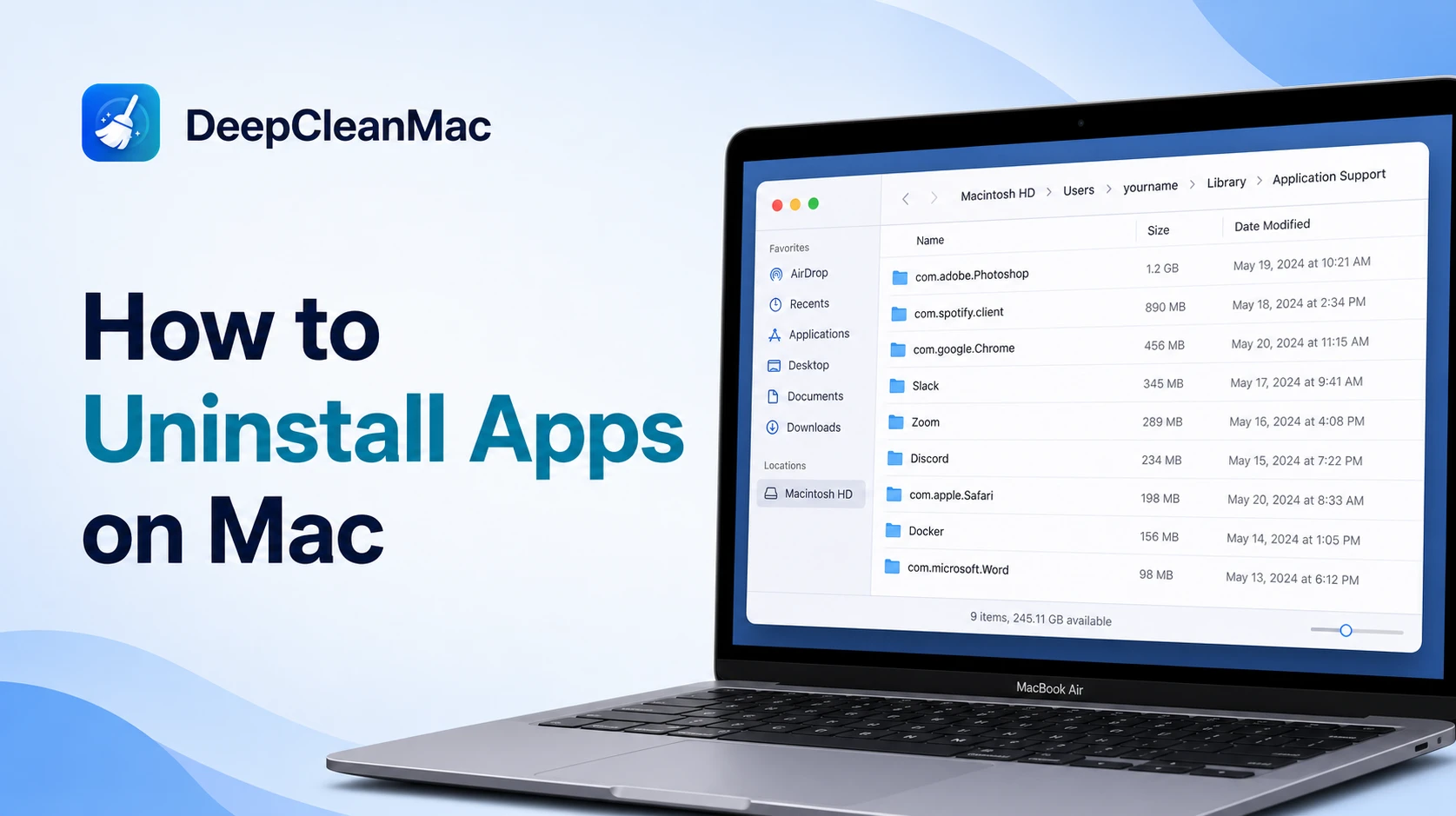
macOS makes basic app removal feel simple, but many apps scatter their data across hidden Library folders. Here are the folders to check when uninstalling apps completely:
| Folder Path | What It Contains |
|---|---|
| ~/Library/Application Support/ | Main app data, databases, downloaded assets, plugin files, and user settings. Often the most important folder - it holds the files that make an app behave the same way after reinstall. |
| ~/Library/Caches/ | Temporary files used for faster loading, previews, and local cache storage. Usually the lowest-risk cleanup, as long as the folder clearly belongs to the removed app. |
| ~/Library/Preferences/ | Preference files, often .plist files tied to app settings. Matters if you want to reset the app completely instead of carrying old settings into the next install. |
| ~/Library/Logs/ | Crash reports, activity logs, and diagnostic records. Rarely large, but deleting them finishes the cleanup. |
| ~/Library/Saved Application State/ | Reopen state for windows and sessions. Remove these if the app kept reopening windows or restoring a broken session. |
| /Library/LaunchAgents & LaunchDaemons/ | Launch items that start background processes at login and system-level background services. Need extra care - delete the wrong item here and you can break something unrelated. |
Why Dragging Apps to the Trash Is Not Enough
You delete a Mac app, empty the Trash, and expect the job to be done. Then the free space barely changes, or a reinstall opens with the same old settings, login state, and background behavior. That happens because the app in /Applications is usually only the visible part of the install. According to Apple's macOS documentation, app bundles (.app files) are self-contained packages, but many apps scatter their data across hidden Library folders. Common leftovers include caches, preferences, logs, saved state files, helper tools, update agents, and app support data in places like ~/Library/Application Support, ~/Library/Caches, and ~/Library/Preferences. A small menu bar utility may leave behind a few harmless preference files. A browser, Adobe app, cloud sync client, VPN, media editor, or developer tool can leave far more - including background components that keep loading after the main app is gone. Dragging an app to the Trash leaves this material behind, so it accumulates from every app you have ever removed. This also explains a common reinstall problem: the new copy of the app reads the old support files, so the same bugs, permissions issues, or broken settings come right back. Cached libraries and preferences can consume 1-5GB per app over time, especially with heavier creative tools.
Troubleshooting Stubborn Apps and Final Cleanup Steps
1. When macOS says the app is in use
If Finder says the app is open, quit it normally first. Then check Activity Monitor for any remaining process under the app name or developer name. Menu bar apps, sync clients, and helper tools often stay running after the main window closes. If that still doesn't work, restart your Mac and try again before doing anything more aggressive.
2. Check for background items that survive removal
The usual culprits are login items, launch agents, helper tools, and old package-installed services. If an app keeps returning, check System Settings > General > Login Items and look for anything tied to the removed software. In Finder, background leftovers often show up in the Library paths covered earlier.
3. Before you reinstall an app
A reinstall is where many users get tripped up. They remove the app, reinstall it, and the same corruption, bad setting, or storage bloat comes right back because the underlying support data never left. Before wiping everything, check for project libraries, presets, license files, templates, and custom profiles you might want to keep.
4. Know the two Library folders
~/Library is your user Library - it holds files tied to your account. /Library is the shared Library - it holds items available to all users, including some helpers and background services. For a normal consumer app, ~/Library is where the useful cleanup happens. For utilities, security software, plugin managers, and sync apps, /Library often matters too.
5. System-protected Apple apps
Many built-in Apple apps can't be removed at all, and that's by design. Don't fight macOS on those. If the app is removable, the system will let you know through the normal interface.
6. Verify storage after cleanup
Review your disk picture after cleanup. Check whether the space problem was really app leftovers or something larger like media files, local snapshots, or developer clutter. If storage is your main issue, clearing caches and Application Support folders for removed apps typically recovers the most space.
Using DeepCleanMac for Complete App Removal
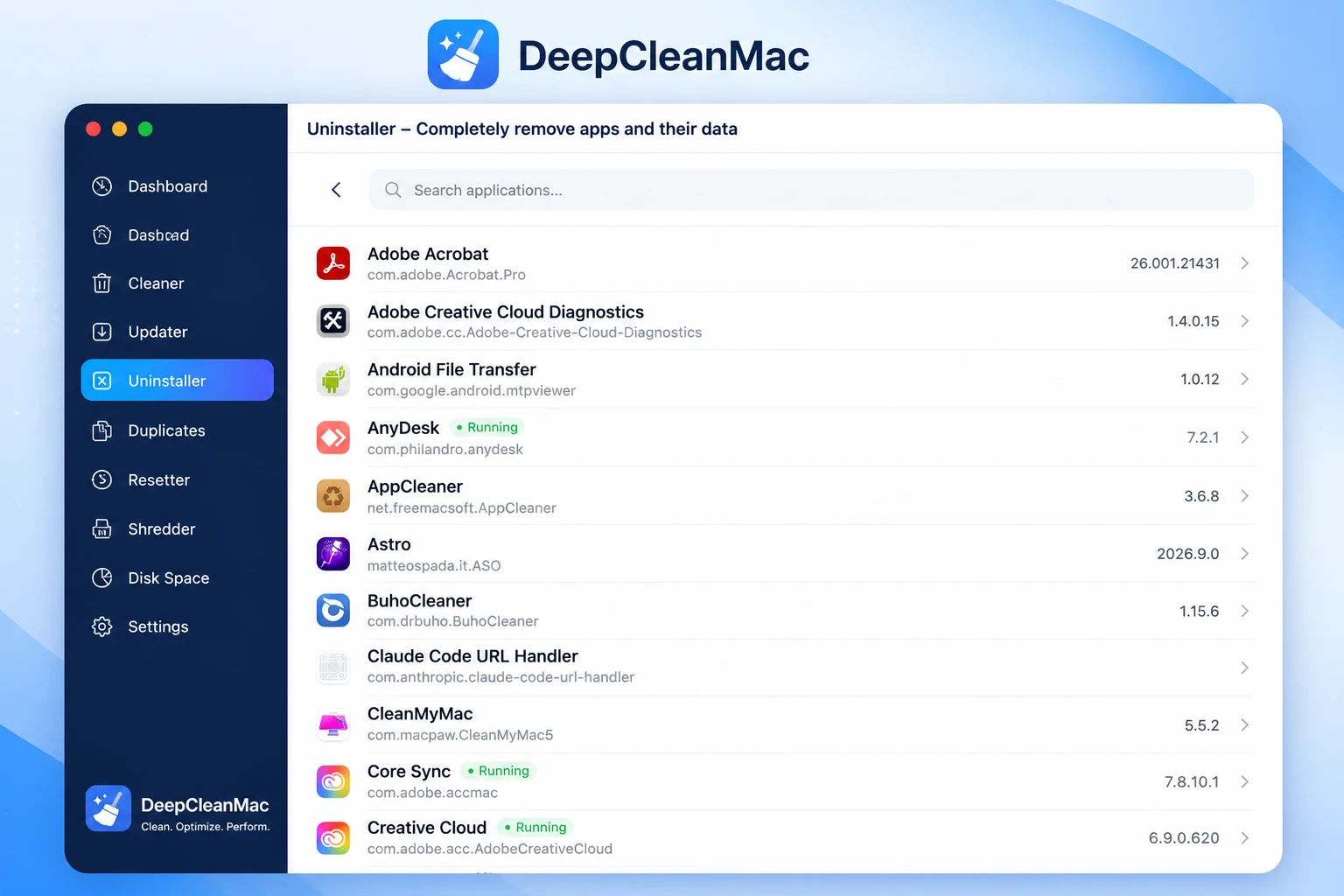
Manual cleanup teaches you how macOS stores app data. It also shows why users shouldn't rely on manual cleanup as their regular process. Once you manage a Mac full of creative tools, developer utilities, old trial apps, browser companions, and package-installed software, the hidden-file hunt turns into repetitive detective work. A dedicated uninstaller scans the places you'd otherwise inspect by hand, groups related files, and lets you review what will be removed before you confirm. DeepCleanMac includes a complete uninstaller and scans 200+ hidden system locations for caches, logs, temp files, and leftover app data. It shows the app bundle and related leftovers together, lets you review before deletion, covers hidden Library locations, supports app resets for clean reinstalls, and fits into a broader maintenance routine. App removal isn't just a decluttering task - it's part of a recurring cleanup routine.
Frequently Asked Questions
Does dragging an app to Trash fully uninstall it on Mac?
▾
No. According to Apple Support, dragging an app to the Trash removes the visible .app bundle but leaves behind support files, caches, preferences, login items, and Application Support data in hidden ~/Library folders. These leftovers can consume hundreds of megabytes to several gigabytes per app — our scans show an average of 500MB-2GB of orphaned data per uninstalled app — and cause issues if you reinstall later.
How do I uninstall apps installed with Homebrew?
▾
Use 'brew uninstall --cask appname' for GUI apps or 'brew uninstall formula_name' for command-line tools. Always uninstall Homebrew packages through Homebrew to keep the package manager's records accurate. Run 'brew list' to confirm whether you're dealing with a formula or a cask.
How do I remove PKG-installed apps from Mac?
▾
First check if the developer included an uninstaller - use that. If not, follow the vendor's uninstall instructions. According to Apple Developer documentation, PKG installers can write files to Applications, /Library, preference folders, launch agent paths, and helper tool locations. Never just drag a PKG-installed app to Trash - it leaves behind system-level components that keep running.
Where does macOS store leftover app files?
▾
The most common locations are ~/Library/Application Support, ~/Library/Caches, ~/Library/Preferences, ~/Library/Logs, ~/Library/Saved Application State, /Library/LaunchAgents, and /Library/LaunchDaemons. Use Finder's Go to Folder (Command + Shift + G) to navigate to these hidden directories.
Why does a reinstalled app have the same old settings and bugs?
▾
Because the old support files, preferences, and caches were never deleted during the first uninstall. The new copy of the app reads these leftover files and restores the same state - including bugs, permissions issues, and broken settings. For a true fresh start, you need to remove all associated Library files before reinstalling.
How much space do app leftovers take on Mac?
▾
Users who manually delete apps often leave behind 20 to 50% more hidden data than they expect. Cached libraries and preferences can consume 1 to 5 GB per app over time, especially with heavier creative tools like Adobe apps, developer tools, and VPN clients. A typical Mac accumulates 2-5 GB of orphaned files from previously uninstalled software.
Can I uninstall built-in Apple apps on Mac?
▾
Most built-in Apple apps cannot be removed - this is by design for system stability. macOS protects these apps and will not allow deletion through normal methods. If an app is removable, the system will let you delete it through Finder or Launchpad. Don't fight macOS on protected system apps.
Uninstalling apps on Mac is easy on the surface - drag to Trash and you're done. But real cleanup means dealing with the support files, caches, preferences, login items, and background services that many apps scatter across hidden Library folders. The methods in this guide cover every installation type - from simple App Store apps to Homebrew packages to complex PKG installers - and show you exactly where leftover files hide. For the fastest complete removal without hunting through hidden folders by hand, DeepCleanMac scans 200+ hidden locations and removes apps with all their associated data in one step. Download it free and see how much leftover app data is hiding on your Mac.
Free download. Scans 200+ hidden locations in seconds.